
What can we help you with?
Add GDPR Field In The JS Help Desk!
Add GDPR Field
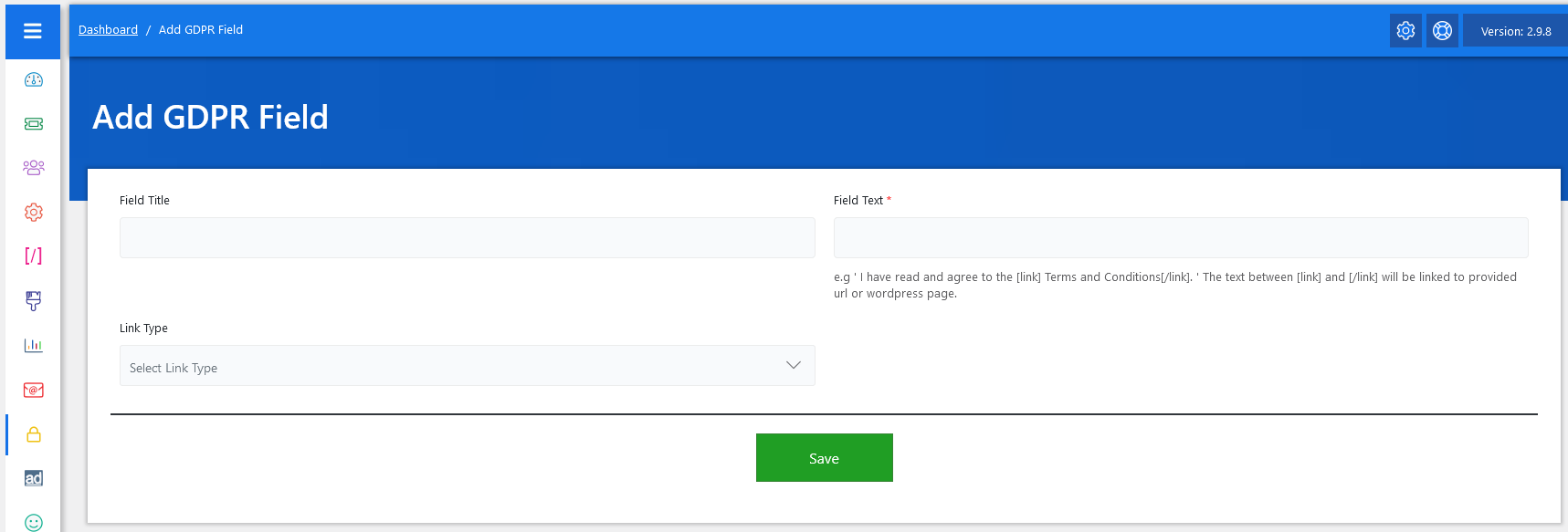
Now, let’s walk through the step-by-step process of adding a GDPR Field from the admin’s end. From your admin dashboard, navigate to the Admin Dashboard > Dashboard Menu > GDPR Fields > Click on the Add GDPR Field button to start adding a GDPR Field. On the ‘Add GDPR Field’ form, we will provide all the necessary details for adding a GDPR Field.
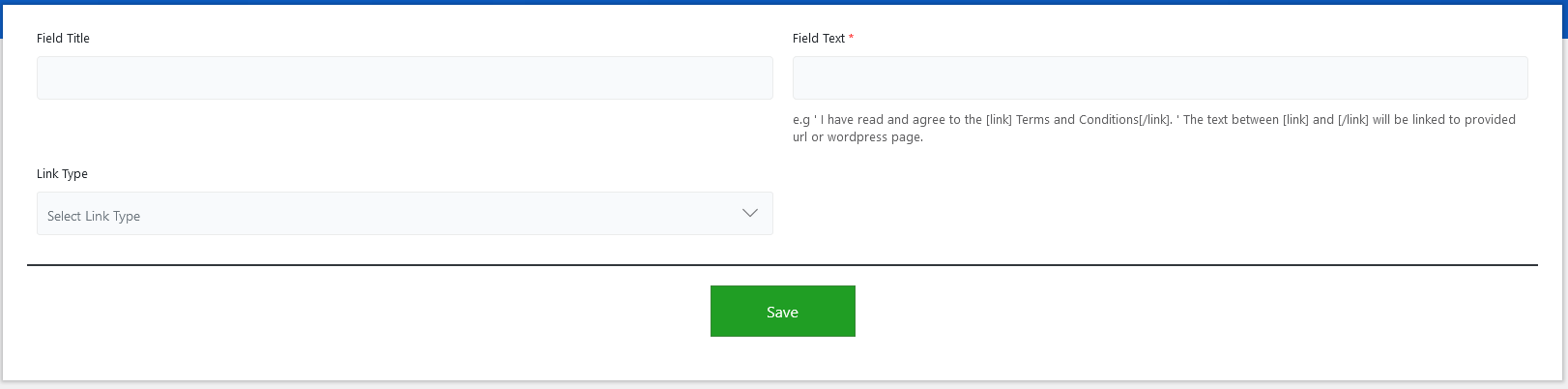
- Field Title: The Field Title serves as the identifier for the consent requirement.
- Field Text: Field Text is the actual statement shown to the user.
- Link Type: The Link Type specifies where the related policy or terms document is stored. You can link to either a WordPress Page, useful if you have an in-site document, or a Direct URL, which could be an external webpage.
After filling in all the relevant fields, simply click the “Save” button at the bottom of the form. The system will validate the inputs and create the new GDPR Field. If any required information is missing or incorrect, a notification will alert you to fix it before submission.