
Departments In The JS Help Desk!
Departments
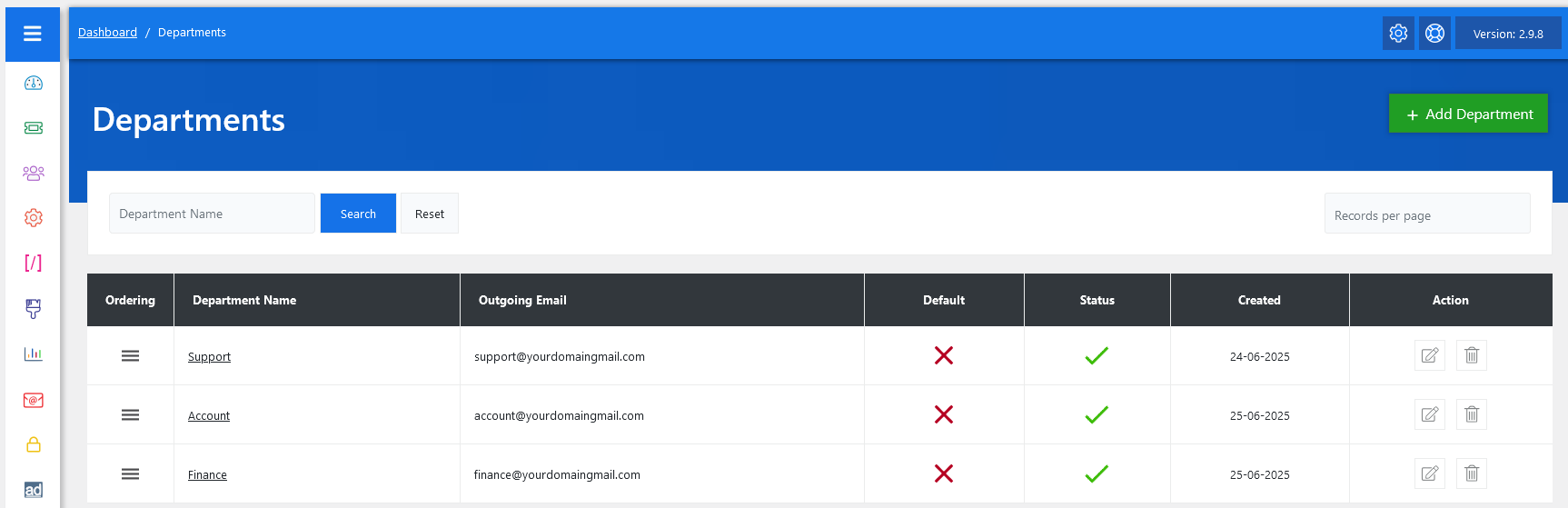
From your admin dashboard, navigate to the Admin Dashboard > Dashboard Menu > Departments. On the departments page, you will find various options for the admin to manage departments. All the details about the departments and how the admin handled them are discussed here.
In JS Help Desk, the Departments feature provides an efficient way to organize your ticketing system by segmenting queries based on business functions such as Support, IT, Finance, or any other department relevant to your organization. This segmentation ensures that tickets are routed to the most appropriate team, reducing response time and improving overall customer satisfaction.
Search

You can use the search filter to quickly find a department. You can search by Department Name. Simply clicking on the Search button will show the department of that criteria. The Reset button clears the filters and restores the full departments list.
Listing

Each department in JS Help Desk can be assigned a unique Outgoing Email, allowing replies from agents in that department to be sent using department-specific email addresses. For example, tickets related to billing issues can be handled by the Finance department, and responses can be sent from “finance@yourdomain.com”, helping users recognize the source of communication and maintain trust.
The Default column indicates whether a department is set as the default for ticket assignment. If no specific department is selected by a user during ticket submission, the default department will automatically be assigned to the ticket. For instance, if “Support” is marked as default, all unassigned tickets or general inquiries will be directed to the Support team. This ensures there is always a fallback routing path for tickets.
The Status column shows whether a department is active or inactive. An active department (indicated with a green check) is visible and usable across the system, whereas an inactive one is hidden from users and cannot receive new tickets. Additionally, there’s an option to “Add Department” at the top right of the “Departments” page.
Change Fields Ordering
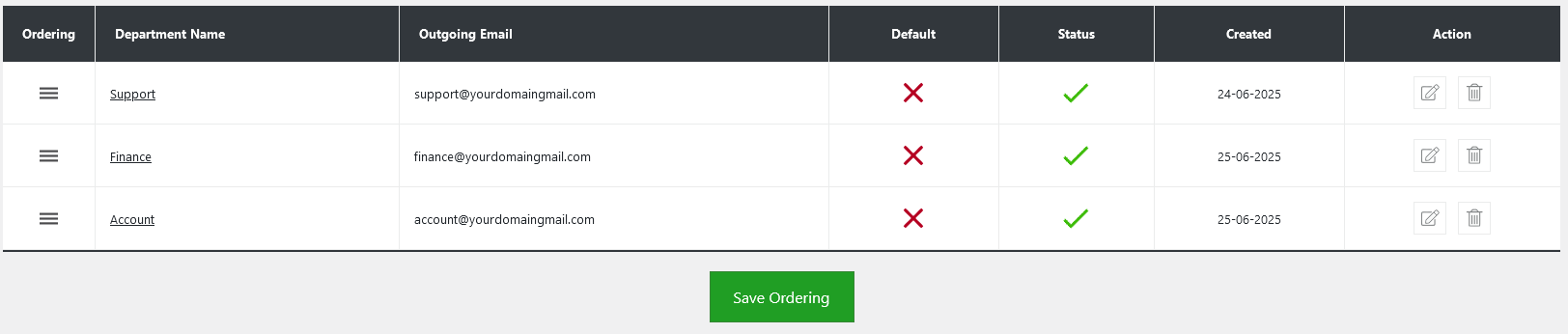
You can also adjust the order of your ticket departments on the ticket form, determining the sequence in which departments appear in the combo box. After modifying the field order and saving the changes, the ticket form will reflect your preferred ordering.