
Downloads In The JS Help Desk!
Downloads
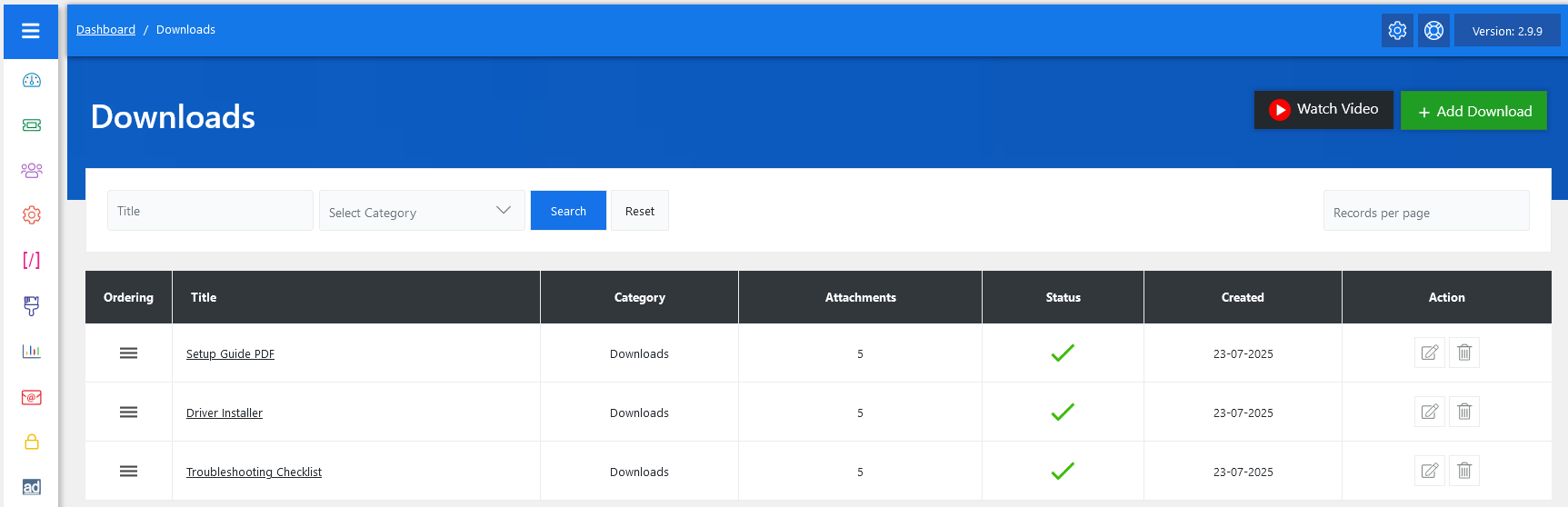
From your admin dashboard, navigate to Admin Dashboard > Dashboard Menu > Downloads. On the downloads page, you will find various options for administrators to manage downloads. All details about the downloads and how the admin manages them are discussed here.
Search

You can use the search filter to quickly find the downloads. You can search by Downloads Title or select a specific Category. Simply choose a category from the dropdown, and clicking on the Search button will display the downloads corresponding to that criterion. The Reset button clears the filters and restores the full list of downloads.
Listing

Here, administrators can view existing articles and organize them by categories. Each article has metadata like a title, category, number of attachments, status, created date, and action buttons for editing or deleting. For example, you might have articles titled “Setup Guide PDF,” “Driver Installer,” and “Troubleshooting Checklist,” each helping users solve specific problems without opening a support ticket.
This module is particularly useful for sharing documentation, software tools, product manuals, or troubleshooting assets that users may need to resolve issues independently, ultimately reducing ticket volume and improving customer satisfaction.
- Title: Name of the article.
- Category: This shows the articles belong to which category.
- Attachments: Shows the number of attachments associated with it.
- Status: A green checkmark means the article is active and visible to users.
- Created: It represents the creation date of the articles.
- Action: You can update or delete the articles anytime using the action buttons on the right side.
Change Fields Ordering
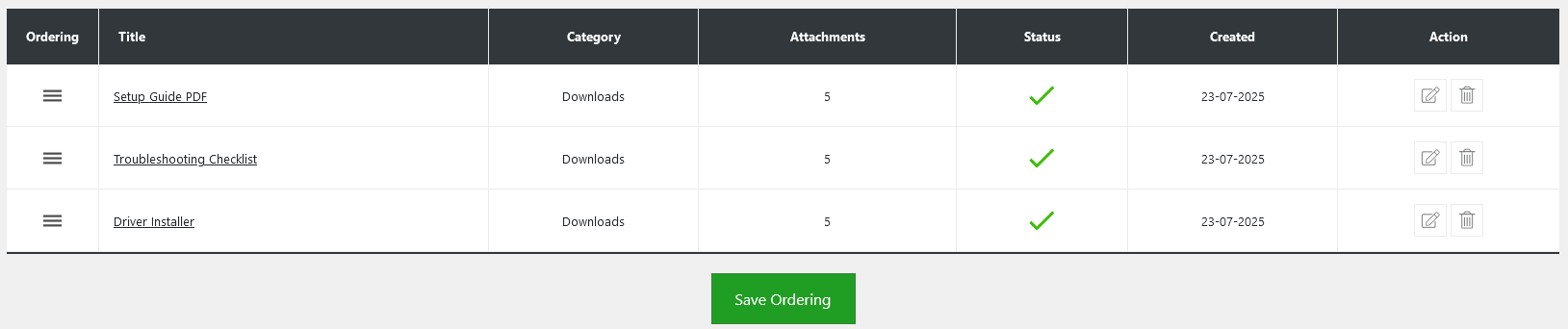
Admins also have control over the ordering of the articles using drag-and-drop functionality via the handle icon in the Ordering column. Additionally, there’s an option to “Add Downloads” at the top right of the “Downloads” page.