
User Feedback In The JS Help Desk!
User Feedback
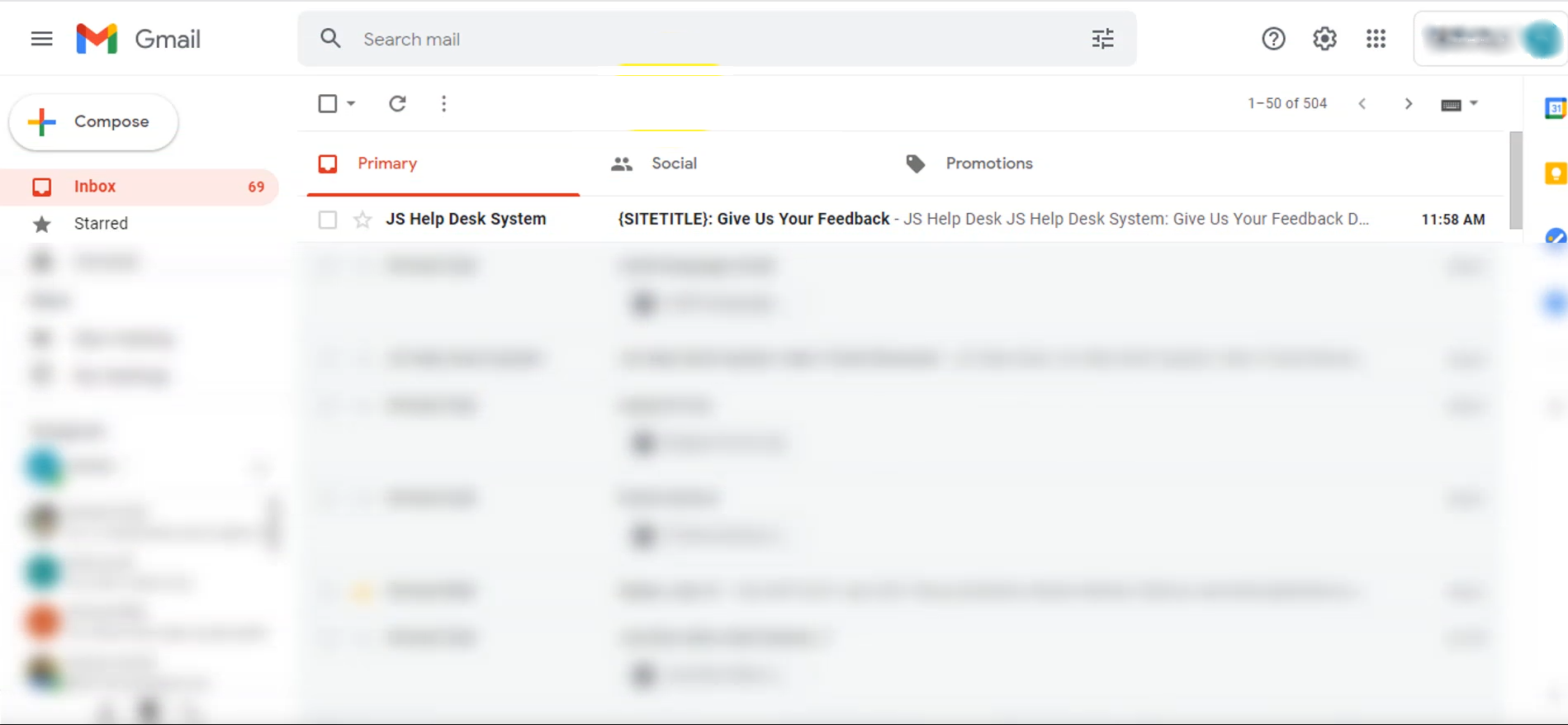
User Feedback in JS Help Desk is a built-in feature that allows customers to share their experience after receiving a support email from your team. It provides a simple and effective way for users to express their satisfaction or dissatisfaction with how their ticket was handled. This helps your organization measure service quality, monitor team performance, and make improvements based on real user insights.
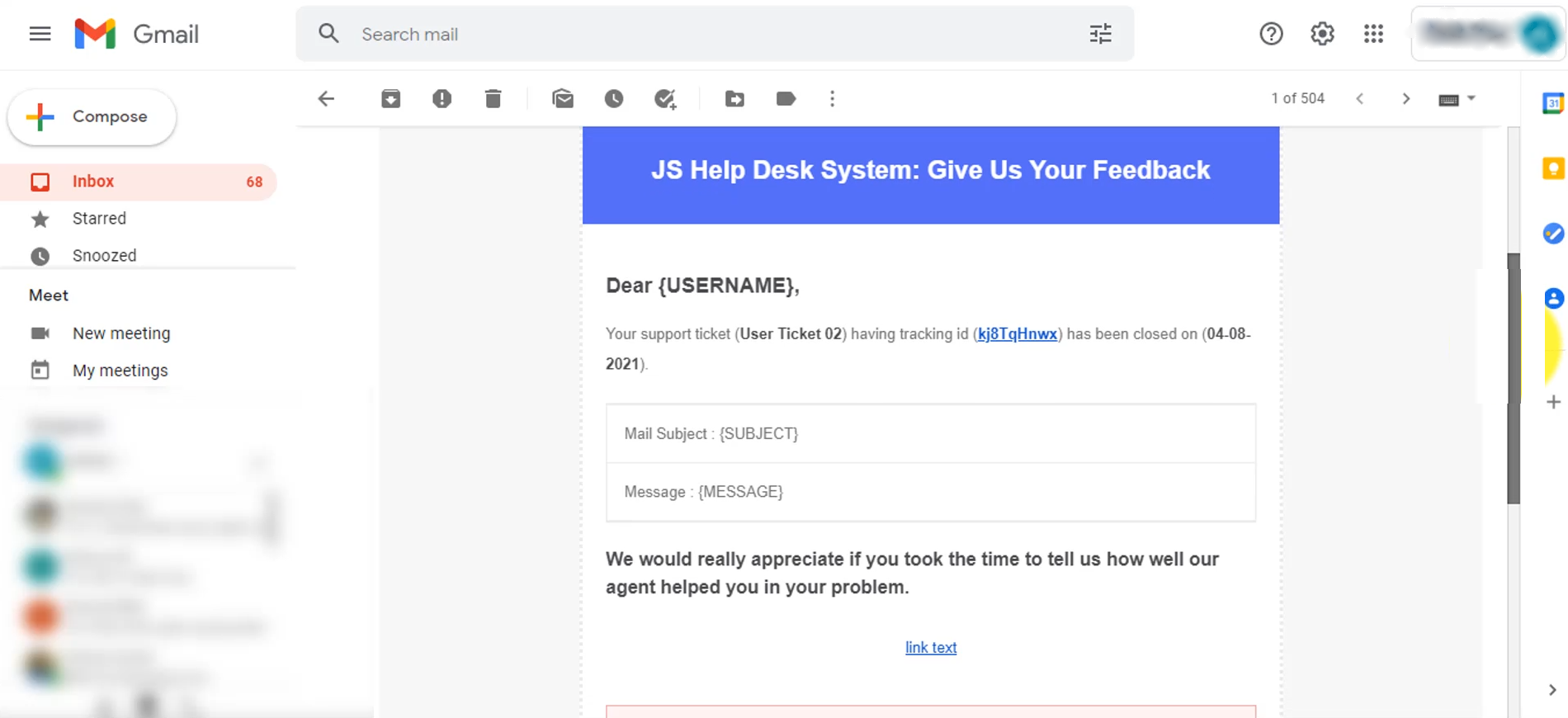
When a ticket is resolved or closed, the system allows the user to submit feedback. Every time a ticket is closed, users have the option to rate the support they received and leave comments about their experience.
Feedback Form
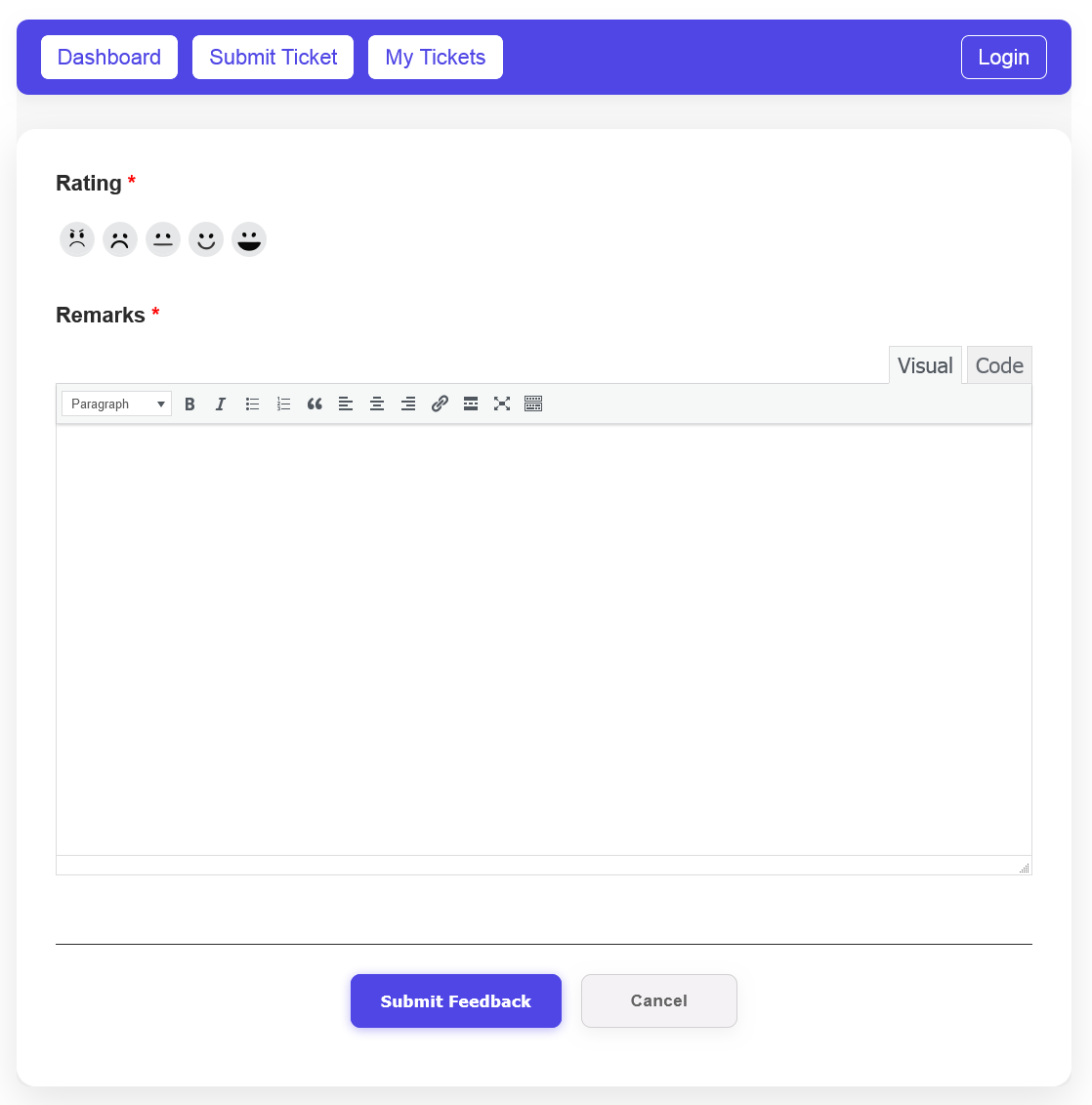
The User Feedback Form in JS Help Desk is a simple and intuitive way for customers to share their experience after interacting with your support team. Once a support ticket has been resolved or closed, users are given the option to rate their experience and provide remarks. This feature plays a vital role in helping your organization measure satisfaction levels and continuously improve support quality.
Rating Section

At the top of the feedback form, users can find the Rating section represented by expressive emoji icons. The feedback form usually includes rating options, such as “Happy,” “Normal,” and “Sad.” This visual rating method makes it easy for users to quickly convey how satisfied they were with the support they received. For instance, if a user’s issue was resolved quickly and professionally, they might select the smiling or very happy icon. Conversely, if the issue took too long or was not resolved properly, they might select one of the sad icons.
Remarks
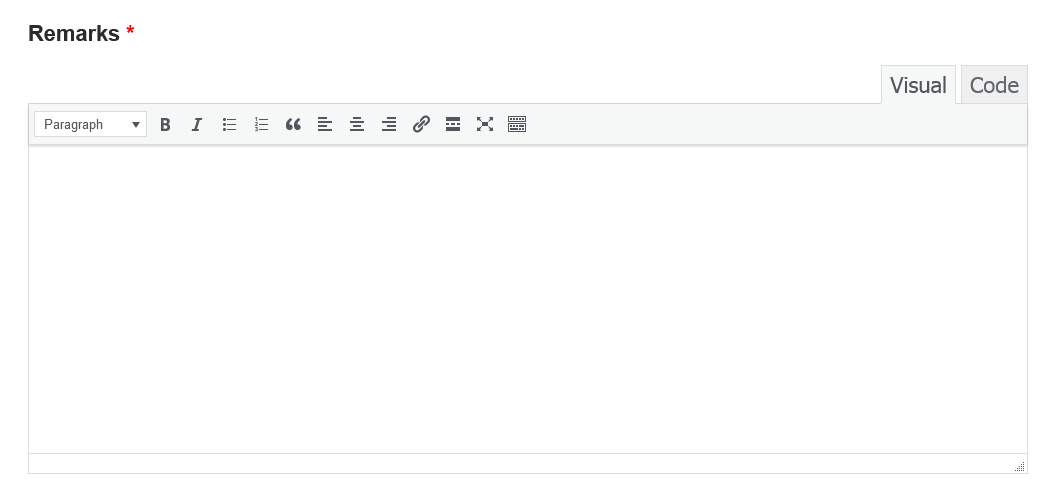
Below the rating section is the Remarks field, which allows users to share detailed comments about their experience. This field is important because it gives users the opportunity to explain the reason behind their rating. For example, a user could write: “The agent was helpful, but the response took longer than expected,” or “Excellent support! My issue was resolved in minutes.” These comments give your team actionable insights that go beyond just an emoji rating.
Once the user fills in their rating and remarks, they can click on Submit Feedback to send their response. The system instantly records the feedback and links it to the corresponding ticket and user profile. If the user decides not to proceed, the Cancel button allows them to exit without saving any input. After submission, the feedback becomes visible to administrators and agents in the backend under the “Feedback” section, where it can be analyzed and reviewed.
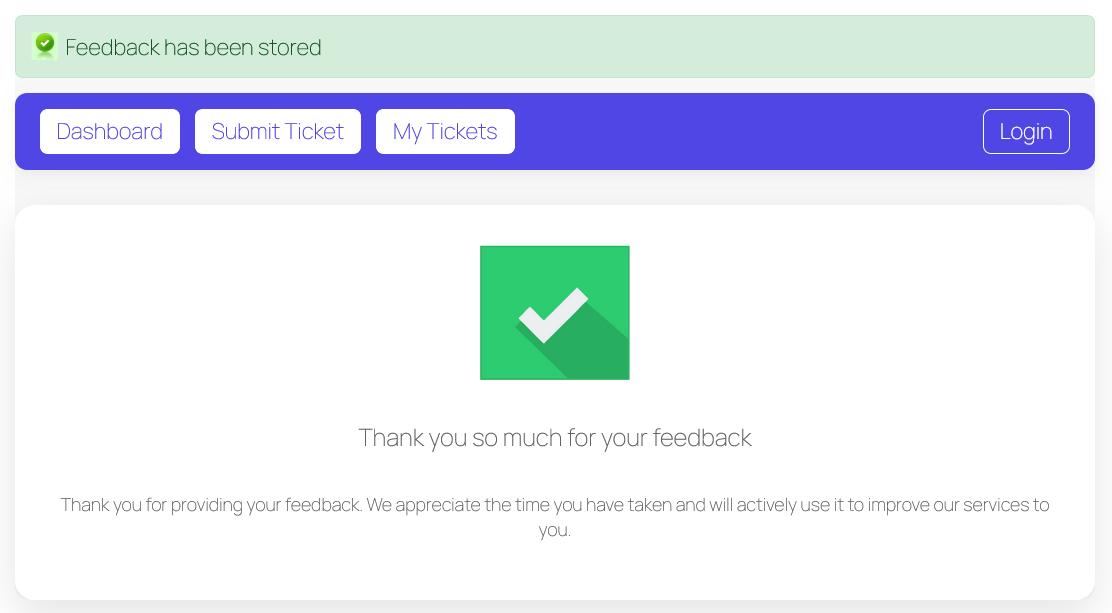
Once a user submits their feedback in JS Help Desk, they are immediately greeted with a confirmation screen that displays a success message. This confirmation page reassures the user that their feedback has been successfully stored and received by the system. The green checkmark icon, along with the message “Thank you so much for your feedback,” provides a clear and positive indication that their input has been acknowledged.