
Priorities In The JS Help Desk!
Priorities
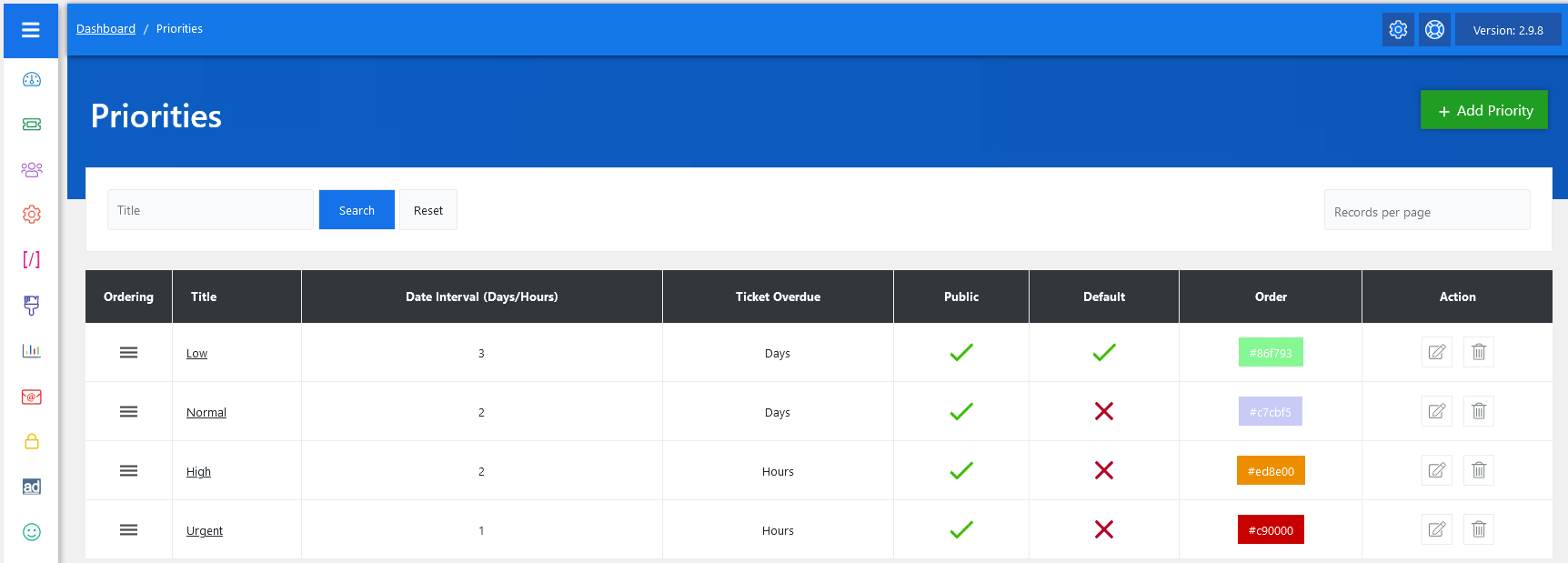
From your admin dashboard, navigate to the Admin Dashboard > Dashboard Menu > Priorities. On the priorities page, you will find various options for the admin to manage priorities. All details about priorities and how the admin manages them are discussed here.
Ticket priorities in JS Help Desk allow you to categorize support requests based on their urgency and importance. By setting priorities, agents can focus on the most critical tickets first, ensuring that customer issues are resolved on time.
Search

You can use the search filter to find the priority quickly. You can search by Title. Fill the title field, and clicking on the Search button will display the priorities corresponding to that criterion. The Reset button clears the filters and restores the full list of priorities.
Listing

Each ticket in JS Help Desk can be assigned a priority such as Low, Normal, High, or Urgent. These priorities determine the response and resolution timeframe. For example, a ticket marked as Urgent will typically require immediate attention, while a Low priority ticket may allow more time before it needs to be resolved.
In the control panel, each priority can be customized with its own date interval (days or hours), which defines when a ticket is considered overdue. This ensures that agents are reminded of pending tickets before deadlines are missed.
-
Title: Priority title (e.g., Low, Normal, High, and Urgent).
-
Date Interval (Days/Hours): Defines the number of days/hours ticket deadlines or when a ticket is considered overdue.
-
Public or Internal Visibility: A green checkmark means the priority is active and visible to users.
-
Default Priority: That is automatically assigned when a ticket is created.
-
Color Coding: To quickly identify priority levels on the dashboard.
- Actions: You can update or delete the priority anytime using the action buttons on the right side.
Change Fields Ordering
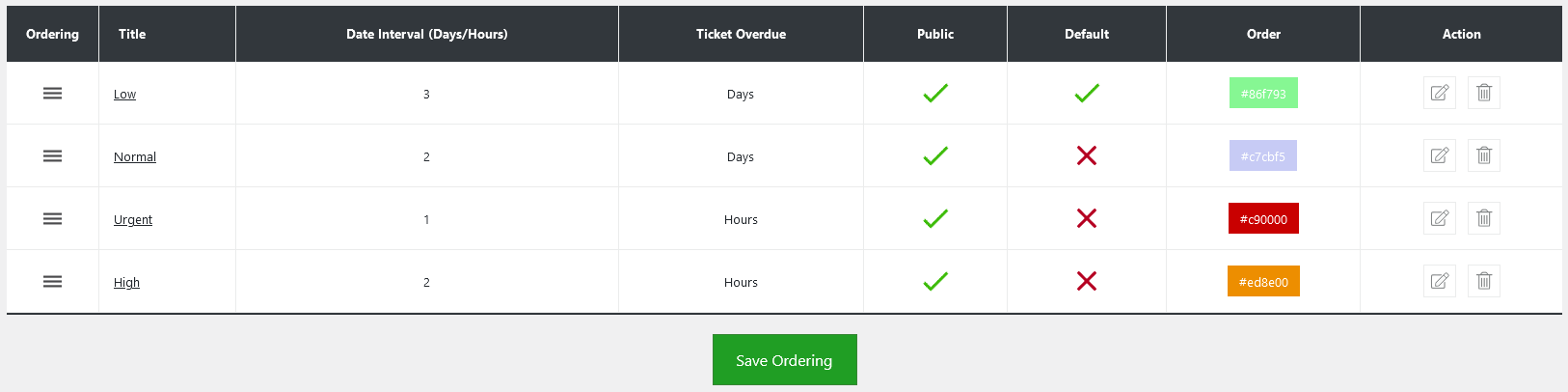
Admins also have control over the ordering of the priority using drag-and-drop functionality via the handle icon in the Ordering column. Additionally, there’s an option to “Add Priority” at the top right of the “Priorities” page.