
Add Ticket In The JS Help Desk!
Select Form
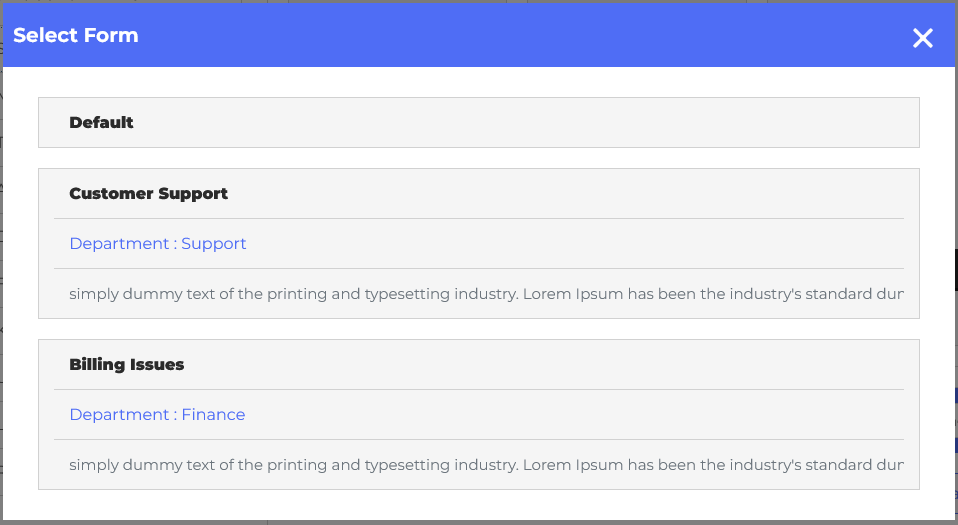
When you click the “Create Ticket” button, a pop-up will appear on the screen. You can select the form to create a ticket according to your requirements. The pop-up has multiple ticket forms that require a name, department, and description. For example, you might have one form for “Customer Support,” another for “Billing Issues,” and a third for “Product Feedback,” each form with its relevant fields.
Create Ticket
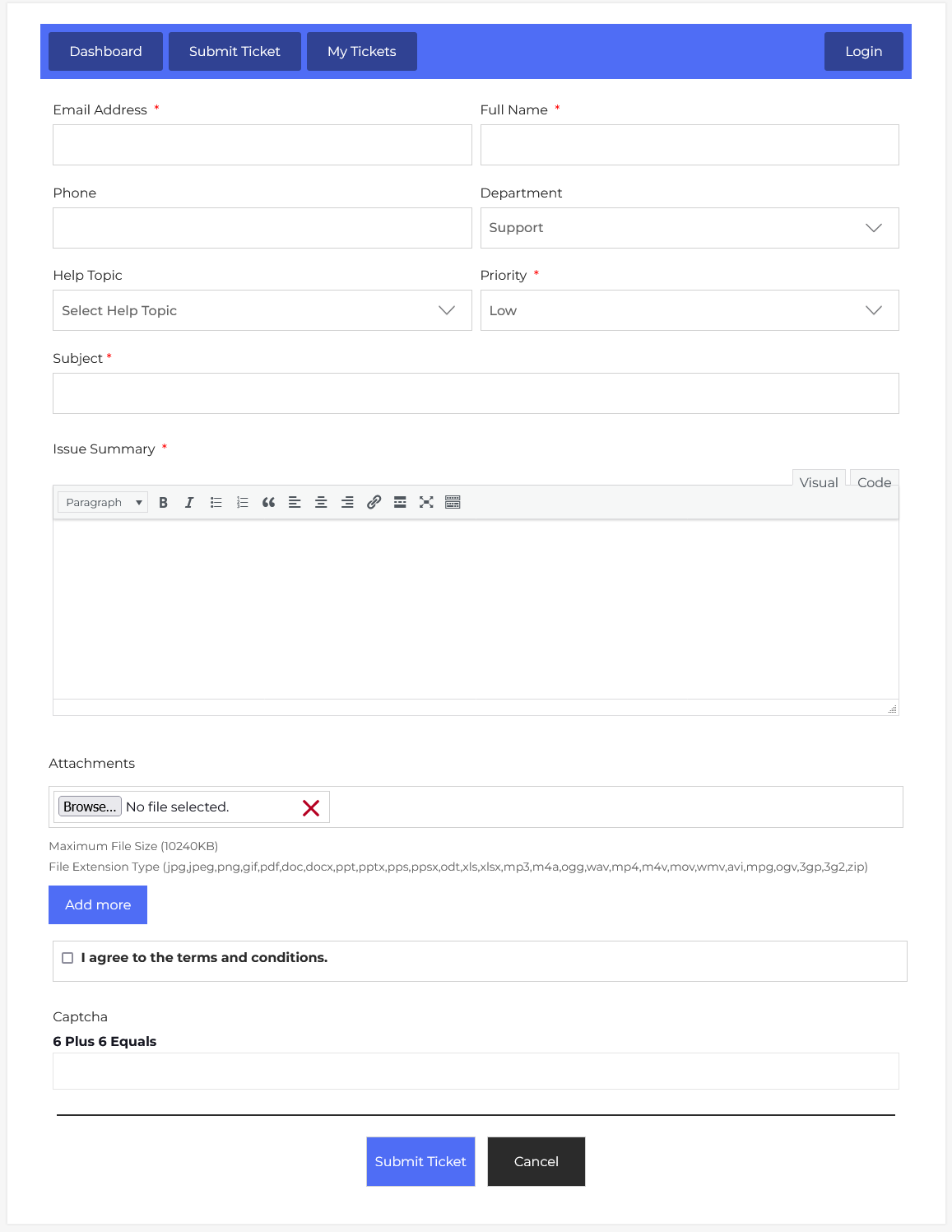
Now, let’s walk through the step-by-step process of creating a ticket from the visitor’s end. From your visitor dashboard, navigate to the Guest User Dashboard > Dashboard Menu > Submit Ticket to start creating a ticket effectively. On the ‘Add Ticket’ form, we will provide all the necessary details for creating a ticket.
- Email Address: Enter the user’s email address.
- Full Name: Enter the full name.
- Phone: Enter the phone number.
- Department: Choose the relevant department from the dropdown field (e.g., Technical Support, IT, Finance).
- Help Topic: The help topic is a predefined category that classifies the type of issue or request a user is raising. Select a predefined help topic from the dropdown field.
- Priority: Set the ticket priority (Low, Normal, High, Urgent).
- Subject: Subject is the title of the ticket. Give a short, descriptive title to the issue.
- Summary Issue: The issue summary supports rich text formatting, allowing users to elaborate on their problem, add links, and highlight key points for clarity.
- Attachments: The user can attach files such as screenshots, PDFs, or logs. The system allows multiple attachments up to 10MB each, and it supports a wide range of file formats.
- Product: The user can select a Product from a drop-down field (if the issue relates to a specific item or service).
- Terms and Conditions: Before submitting the ticket, the user must check the box to agree to the terms and conditions. This ensures that the user consents to the support policies.
- Captcha: Enter the correct captcha.
After filling in all relevant fields and clicking the Submit Ticket button, the ticket will be saved in the system.