
What can we help you with?
Add Category In The JS Help Desk!
Add Category
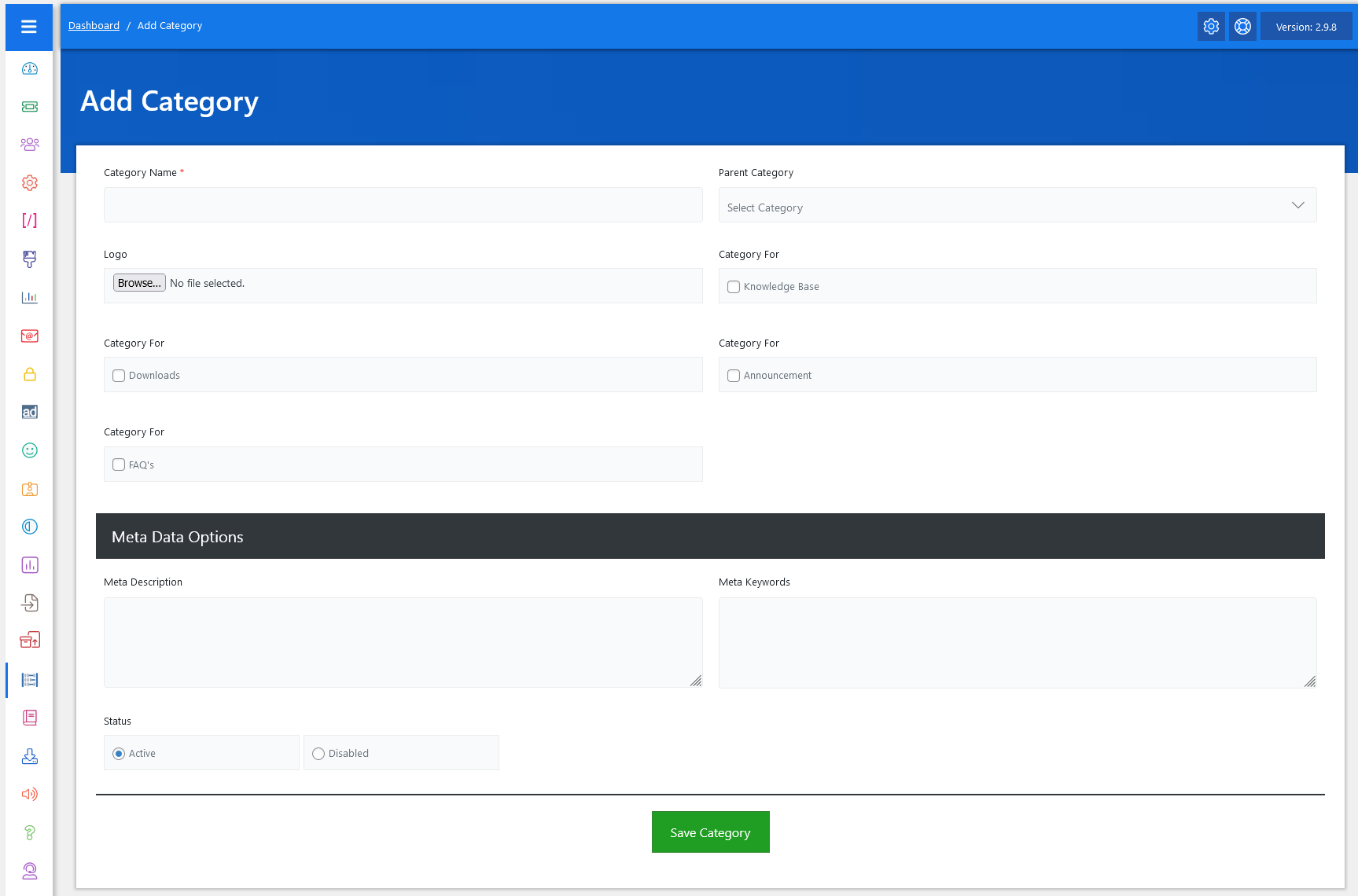
Now, let’s walk through the step-by-step process of adding a category from the admin end. From your admin dashboard, navigate to the Admin Dashboard > Dashboard Menu >Add Category > to start adding a category effectively. On the ‘Add Category’ form, we will provide all the necessary details for adding a category.
- Category Name: The first mandatory field is Category Name, where you specify the name of the category.
- Parent Category: Next is the Parent Category dropdown, which enables hierarchical categorization. This is especially useful when you want to create sub-categories under a broader category.
- Logo: You also have the option to upload a logo for each category, which can be used for branding or visual distinction in the user interface.
- Category For: Below that, you can define the purpose or visibility of the category by checking boxes like Knowledge Base, Downloads, Announcement, and FAQs. For example, if you’re creating a category meant to store help articles, you would check “Knowledge Base”. If you’re creating a category to house downloadable user manuals or software updates, you’d check “Downloads”. This allows you to control where the category appears in the help desk system.
- Status: Here, you can choose whether the category should be Active or Disabled.
After filling in all the relevant fields, simply click the green “Save Category” button at the bottom of the form. The system will validate the inputs and create the new category. If any required information is missing or incorrect, a notification will alert you to fix it before submission.