
Add Email In The JS Help Desk!
Add Email
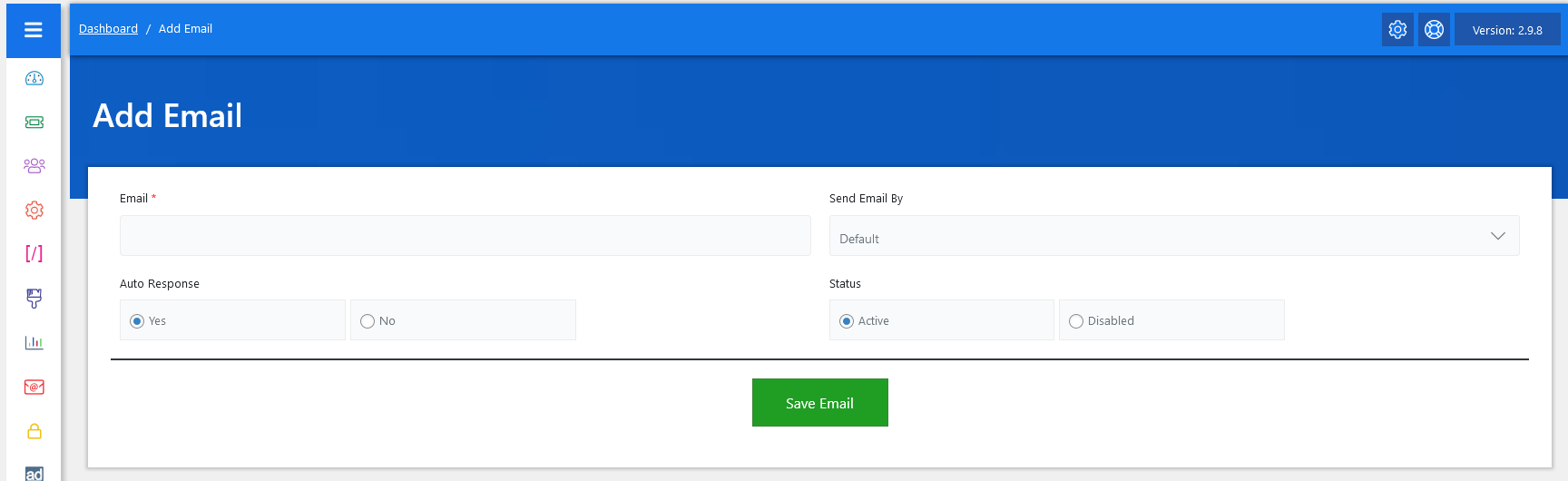
Now, let’s walk through the step-by-step process of adding an email from the admin end. From your admin dashboard, navigate to the Admin Dashboard > Dashboard Menu > Add Email to start adding a response effectively. On the ‘Add Email’ form, we will provide all the necessary details for adding an email.
The Add System Email feature in JS Help Desk allows administrators to configure email addresses that will be used for communication between the system, agents, and end users. This is an important setup step because all ticket notifications, auto-responses, and agent replies will be routed through the email accounts you configure here. By adding system emails, you ensure seamless interaction between the help desk system and your users.
Add Email With Default Settings
- Email: The first required field is Email*, where you enter the email address you want the system to use. This could be a general support email (e.g., support@example.com).
- Send Email By: Next, you will find the Send Email By dropdown. This allows you to choose how outgoing emails are sent. Typically, this will be set to Default, but depending on your setup, you may configure SMTP methods. This setting ensures that your system emails are delivered reliably and don’t end up in the spam folder.
- Auto Response: The Auto Response option is another powerful setting. If set to Yes, the system will automatically send a confirmation email to the user whenever they submit a ticket.
- Status: The Status field allows you to set whether the email is Active or Disabled. If it’s set to Active, the email address will be actively used by the help desk for sending and receiving messages. If Disabled, the system will ignore this email. This is useful if you want to temporarily stop using an email without deleting its configuration.
After filling out the details, you can click the green Save Email button to store the configuration. Once saved, the system will immediately start using the new email according to the settings you’ve defined. This means any ticket notifications, agent replies, or auto-responses tied to that email will now flow through the configured account.