
Agent Detail Report In The JS Help Desk!
Agent Detail Report
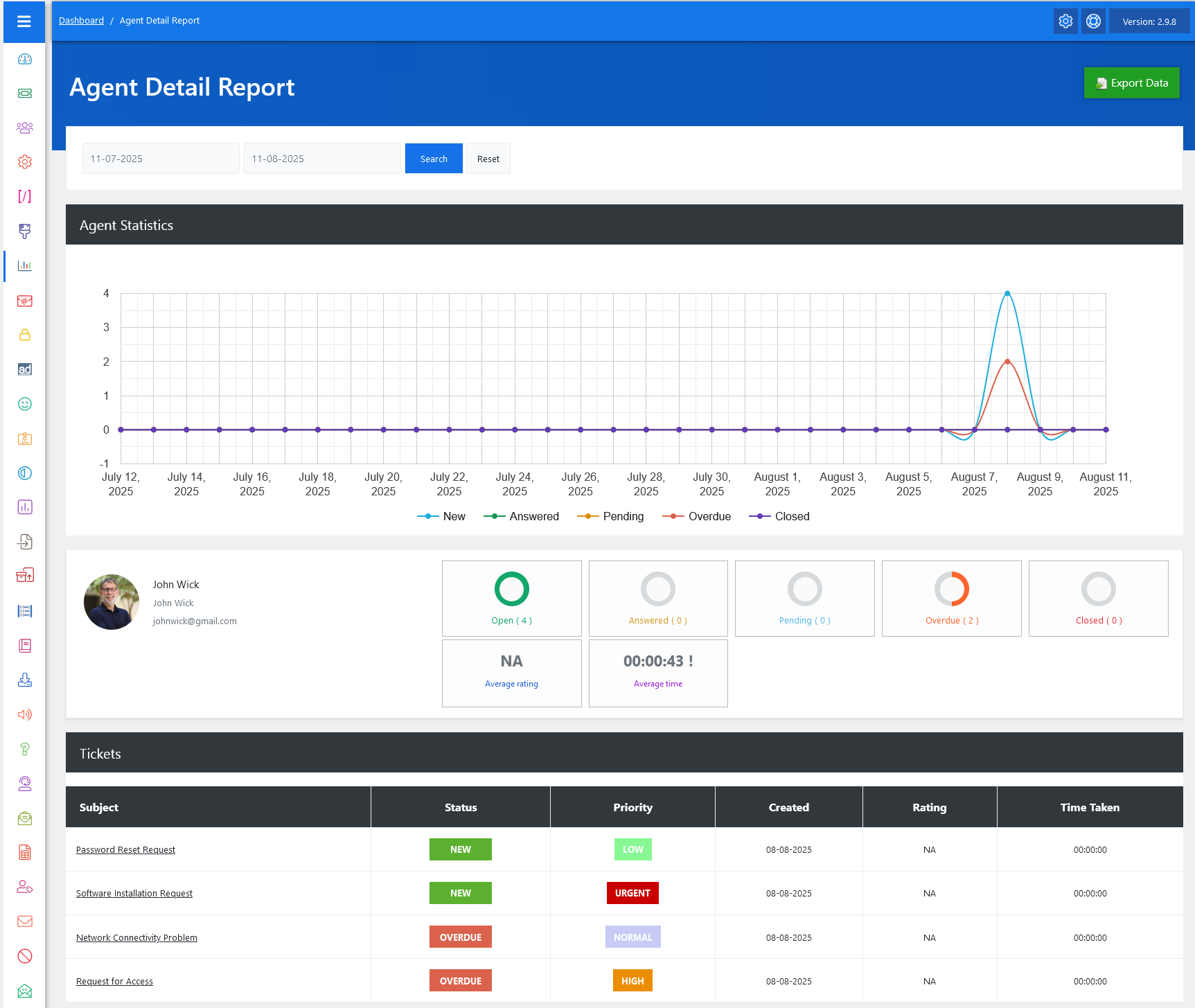
From your admin dashboard, navigate to Admin Dashboard > Dashboard Menu > Agent Reports. To view the agent detail page, click on the agent name. This page provides us with details about an agent and its tickets.
Search

You can filter reports by selecting a date range. This helps in generating time-bound reports, such as checking an agent’s performance for the current week or comparing it to last month. The system will only display ticket activity for that agent within the specified dates.
Graph
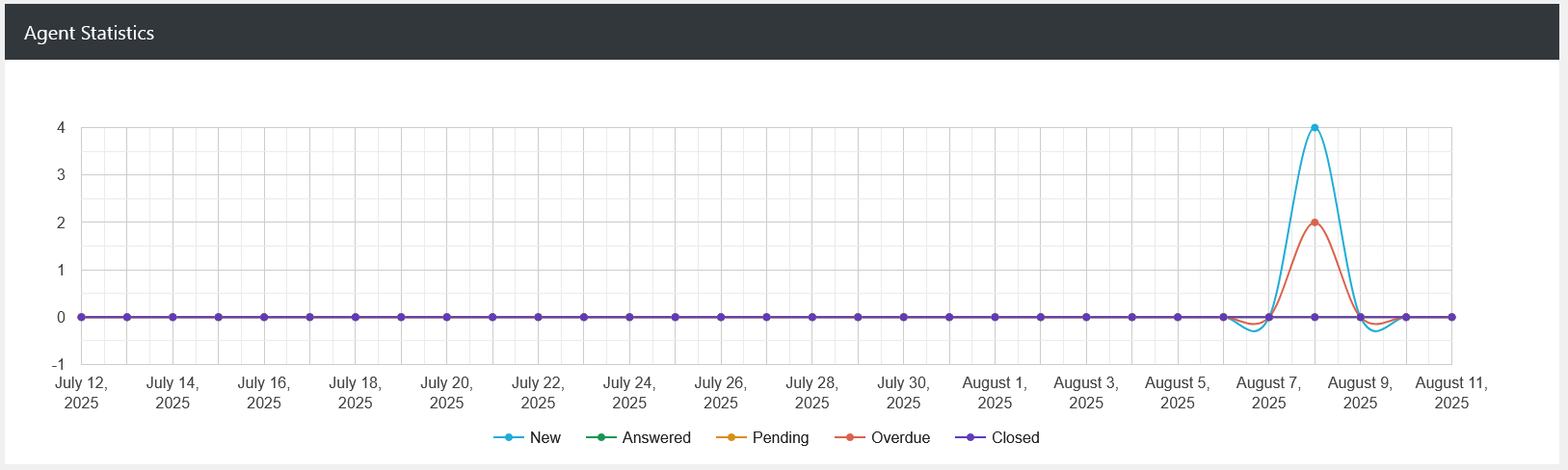
The Agent Statistics section includes a line chart that visualizes ticket trends over time. Each line represents a different status, like “New” in blue, “Answered” in orange, “Pending” in yellow, “Overdue” in red, and “Closed” in purple. By looking at the chart, you can easily identify activity spikes or drops.

Beneath the graph, you will find the agent’s profile details, including their name, photo, and email address. This personalized display makes it easy to confirm which agent’s data you are reviewing. The status counters next to the profile—Open, Answered, Pending, Overdue, and Closed—show exact ticket counts. This gives a quick snapshot of the agent’s current workload. For example, if “Open” shows 4, it means the agent currently has four active tickets to handle.
Two additional performance indicators—Average Rating and Average Time—give you insight into the quality and speed of the agent’s work. The Average Rating reflects customer satisfaction, while Average Time shows the typical time taken to handle a ticket. For instance, if the average time is 00:00:43, it means the agent is responding very quickly, which could be excellent for urgent requests. However, if ratings are low despite fast times, it might indicate rushed or incomplete responses.
Ticket Listing
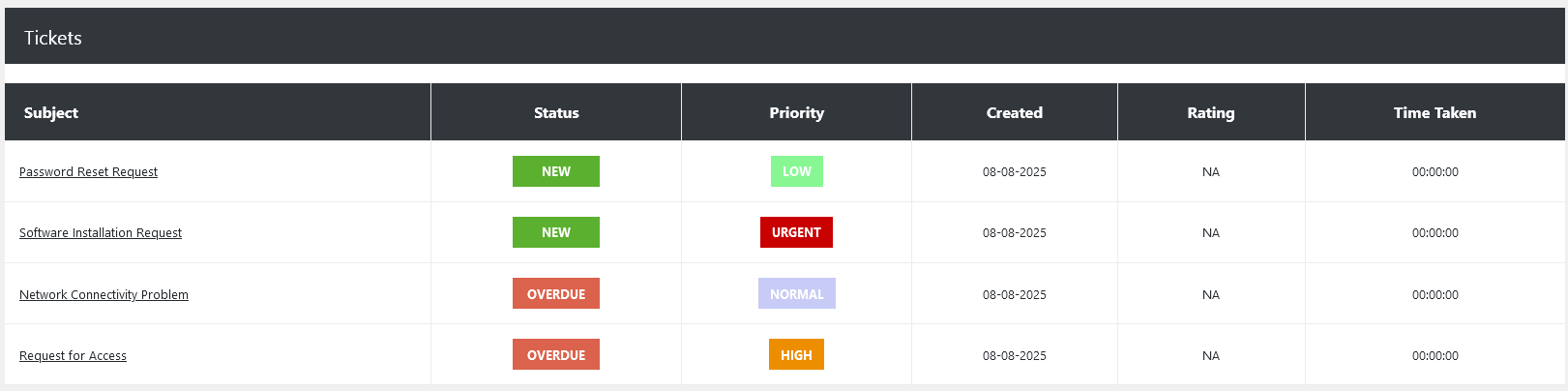
The Tickets table lists all tickets assigned to the agent within the chosen date range. Each row shows important details such as Subject, Status, Priority, Created Date, Rating, and Time Taken. This granular data is particularly useful for deeper performance analysis.
Export Data
The Export Data button in the top right corner allows you to download the report in a file format for record-keeping or further analysis. This is especially helpful for performance reviews, monthly summaries, or sharing with higher management.