
Canned Responses In The JS Help Desk!
Canned Responses
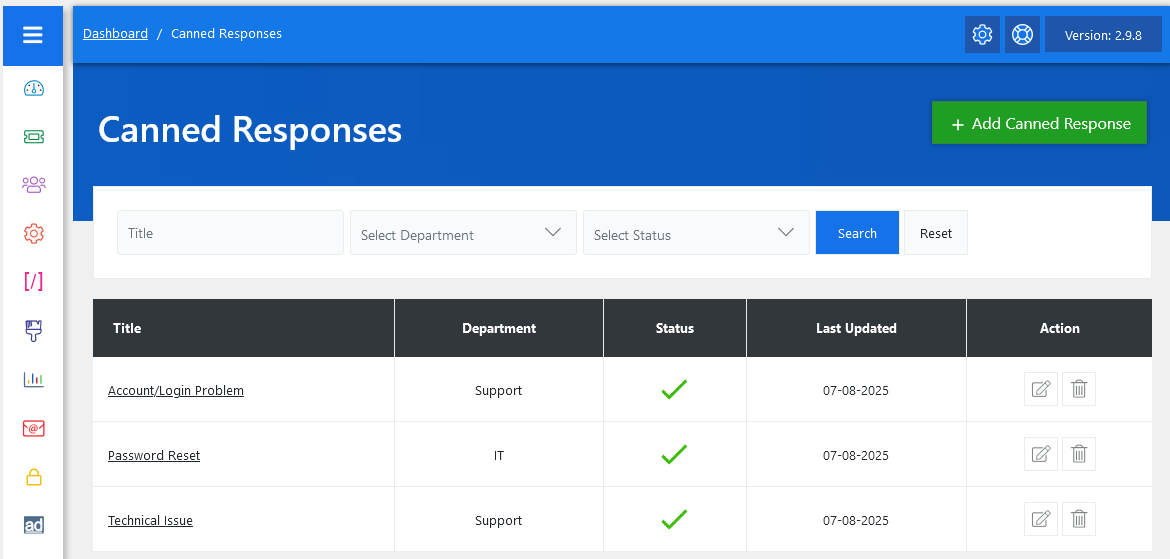
From your admin dashboard, navigate to the Admin Dashboard > Dashboard Menu > Canned Responses. On the canned responses page, you will find various options for the admin to manage canned responses. All details about the canned responses and how the admin handled them are discussed here.
The Canned Responses feature in JS Help Desk is designed to help admins respond to common queries quickly, consistently, and professionally. It enables your team to pre-write replies to frequently asked questions or recurring issues and store them within the help desk system for immediate use during ticket handling. This not only reduces response time but also ensures quality and consistency in communication.
Search

You can use the search filter to quickly find canned responses. You can search by Title, Select Department, and Status (Active/Disabled). Simply clicking on the Search button will show the canned responses for that criterion. The Reset button clears the filters and restores the full canned responses list.
Listing
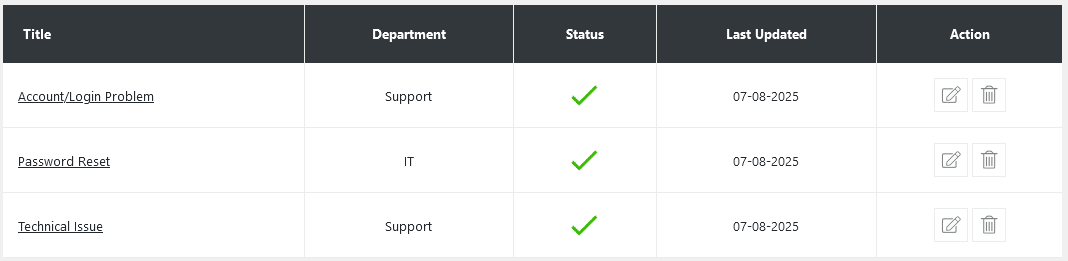
When the admin goes to post a reply on a ticket, they are presented with Canned Responses. These canned responses act like predefined issues—for example, “Resetting Your Account Password,” “Reporting a Security Incident,” or “Understanding Your Payslip.” Each canned response is linked to a specific department (like IT, Support, or Finance).
- Title: Name of canned responses.
- Department: This shows the canned response belongs to which departments.
- Status: A green checkmark means the article is active.
- Last Updated: It helps admins keep track of which responses were recently edited.
- Action: You can update or delete the response at any time using the action buttons on the right side.
Additionally, there’s an option to “Add Canned Responses” at the top right of the “Canned Response” page.