
Captcha In The JS Help Desk!
Captcha
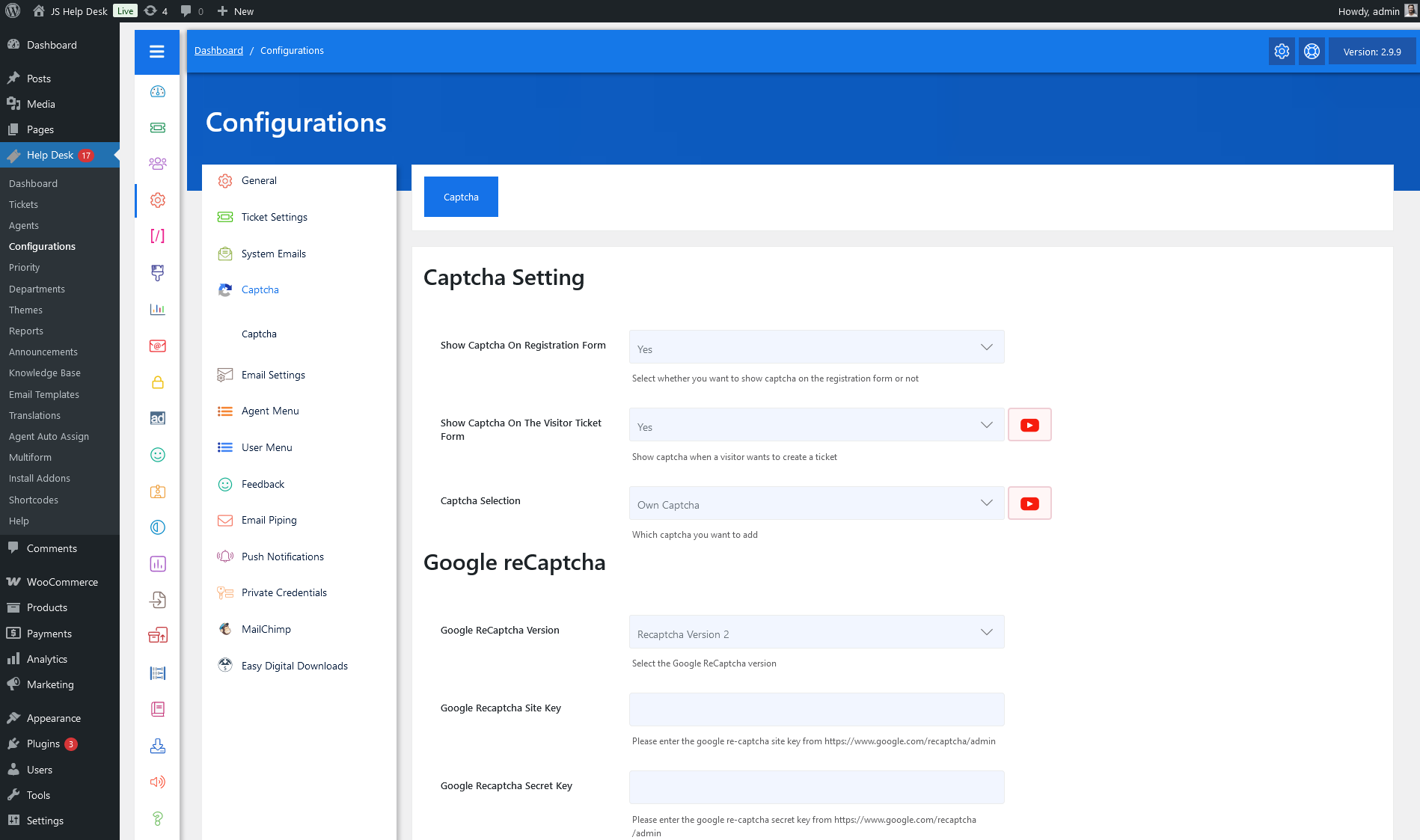
As an administrator, navigate to the Admin Dashboard > Dashboard Menu > Configurations > Captcha. On the configurations page, you will find various configurations that the admin can use to manage the JS Help Desk. This page has all the captcha configurations on the JS Help Desk.
Captcha Setting
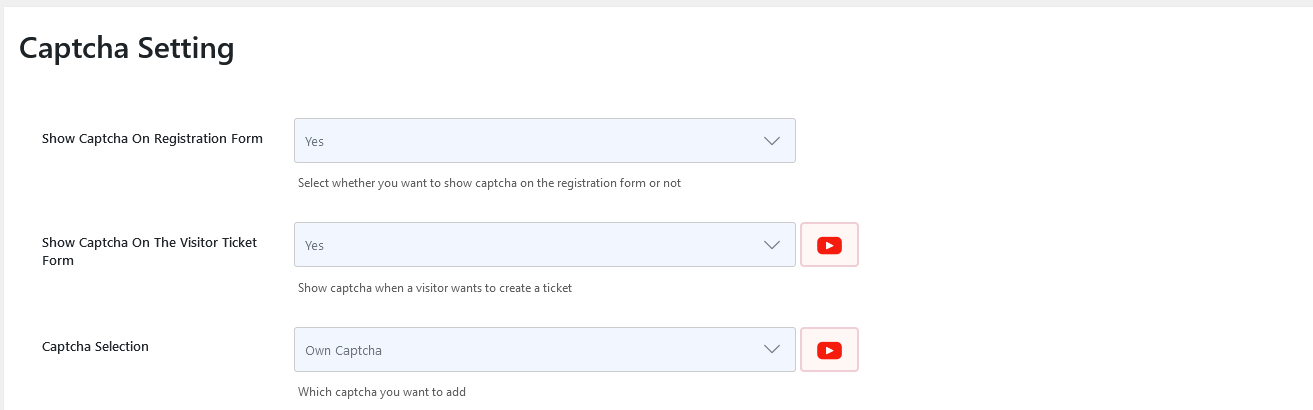
Show Captcha On Registration Form
Select whether you want to display the CAPTCHA on the registration form or not.
Show Captcha On The Visitor Ticket Form
Display the CAPTCHA when a visitor attempts to create a ticket.
Captcha Selection
JS Help Desk has two types of CAPTCHA: JS Help Desk’s “Own CAPTCHA” and “Google reCAPTCHA”. Admin can select which captcha he wants to use on his site.
Google reCaptcha
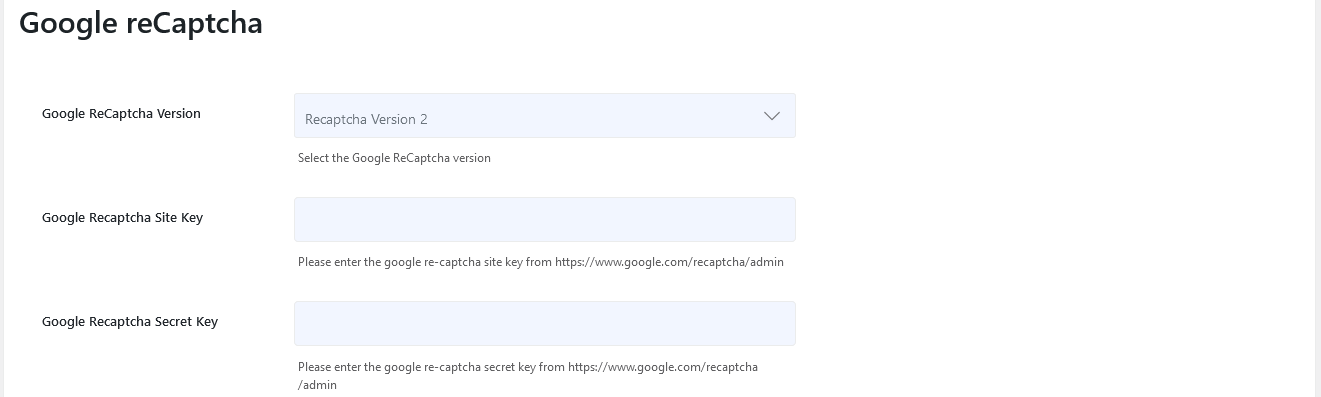
Google reCAPTCHA Version
This configuration allows the admin to set the Google Recaptcha version type V2 or V3.
Google reCAPTCHA Site Key
The Google ReCaptcha public key is required for Google ReCaptcha to work.
Google reCAPTCHA Secret Key
The Google reCAPTCHA private key is required for Google reCAPTCHA to work.
Own Captcha
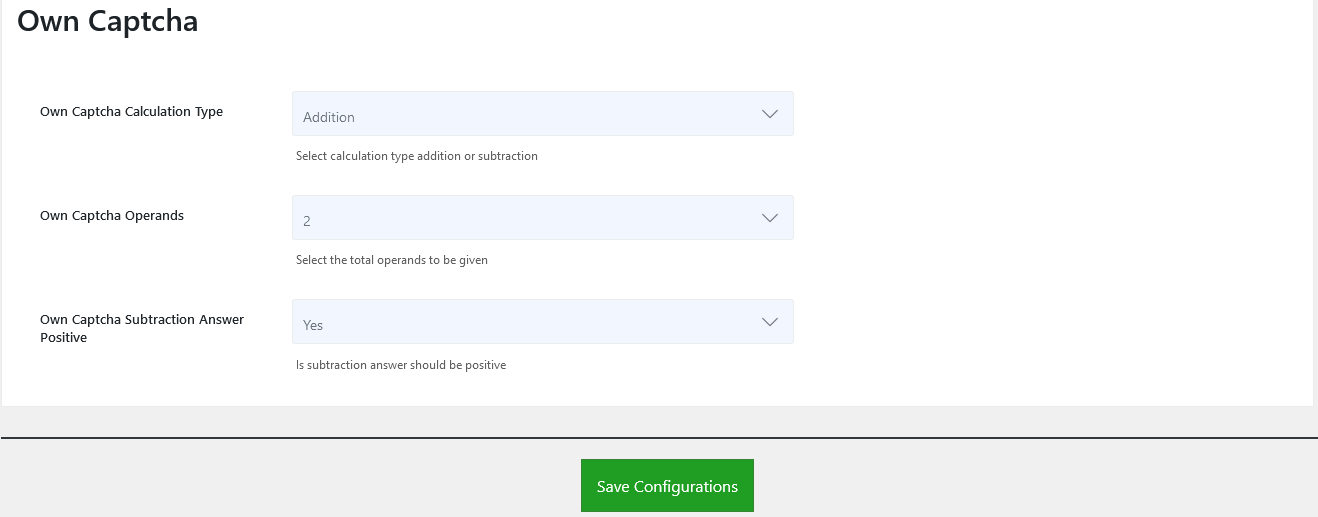
Own Captcha Calculation Type
This configuration only affects the JS Help Desk captcha. This configuration allows the admin to control the calculation type of the JS Help Desk captcha.
Own Captcha Operands
This configuration only affects the JS Help Desk captcha. This configuration allows the admin to control the number of operands in the JS Help Desk captcha.
Own Captcha Subtraction Answer Positive
This configuration only affects if the captcha calculation type is selected for any captcha or subtraction captcha. This configuration determines whether the answer to the captcha must be positive or not.