
Inbox In The JS Help Desk!
Inbox
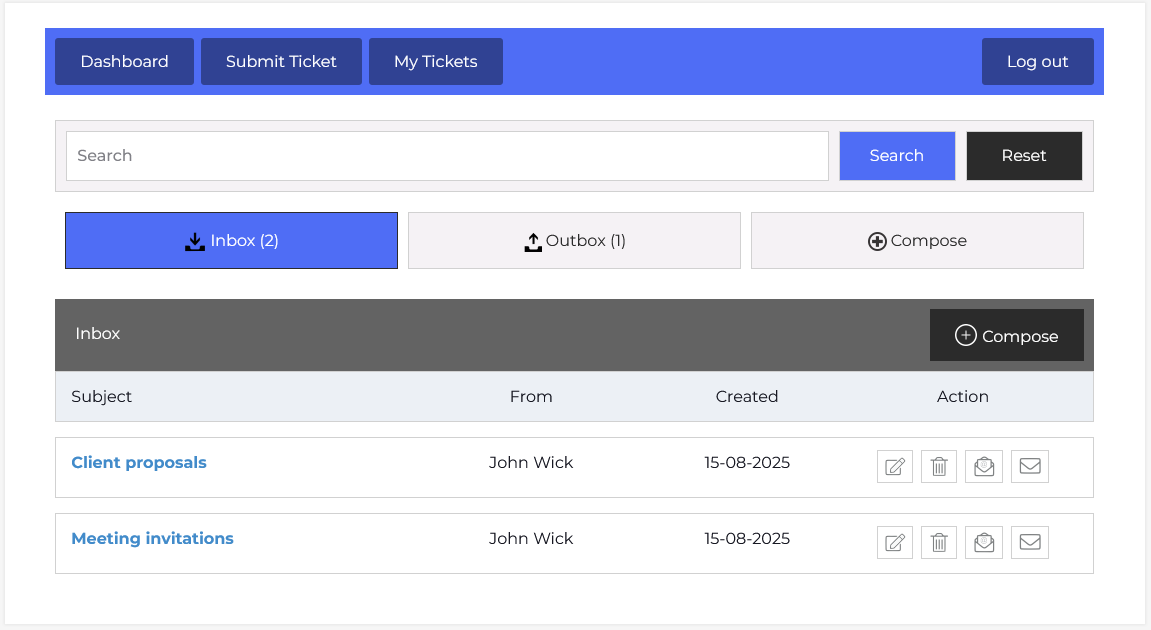
The Inbox Message feature in JS Help Desk is your central hub for managing incoming communications. It allows you to view, search, and respond to messages from other agents within the system. This feature ensures that all your important conversations are organized in one place, helping you to stay on top of tasks and support requests efficiently.
Search

At the top of the interface, you will see a Search bar that lets you quickly find specific messages. Simply type in keywords related to the subject, sender, or content, and click Search to filter your results. If you want to view all messages again, click the Reset button to clear the search filters. This is especially helpful when your inbox contains many messages, and you need to locate a specific conversation quickly.
Listing
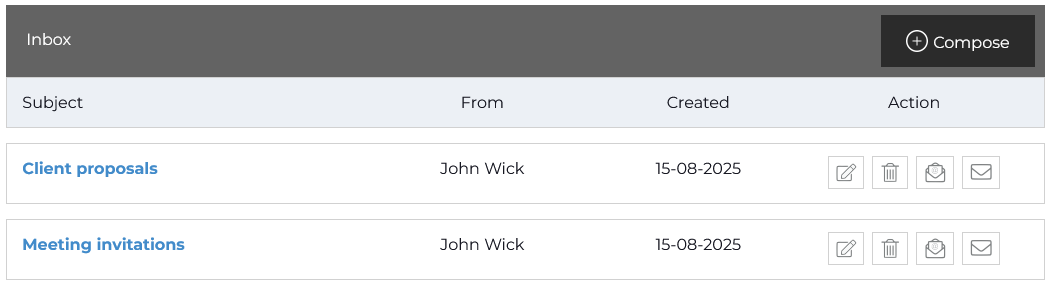
The Inbox tab displays all messages you’ve received. The Compose button allows you to create a new message from scratch. For example, if you want to initiate a conversation with another agent regarding a project update, you can click Compose and send your message directly.
The main inbox table is divided into columns for Subject, From, Created, and Action. The Subject column shows the title of the message, such as “Client proposals” or “Meeting invitations”, giving you an immediate idea of what the conversation is about. The From column shows the sender’s name, and the Created column records the date the message was received, making it easy to track when communications took place.
On the right side under Action, you have a set of quick-access buttons. These allow you to:
-
Edit: Open message in edit case.
-
Delete: Remove the message from your inbox.
-
Mark Read: The Mark Read button in the messaging section is used to update the status of a message from unread to read.
-
Mark unread: The Mark Unread button is used to change a message’s status back from read to unread. This is especially useful when you’ve opened a message but aren’t ready to respond yet, or you want to come back to it later and keep it flagged as needing attention.
Clicking on a message subject opens the Message Details view, where you can read the full content, see all replies, and send your response. This ensures you have the complete conversation history in one place, preventing misunderstandings and saving time when following up on requests.