
My Tickets In The JS Help Desk!
My Tickets
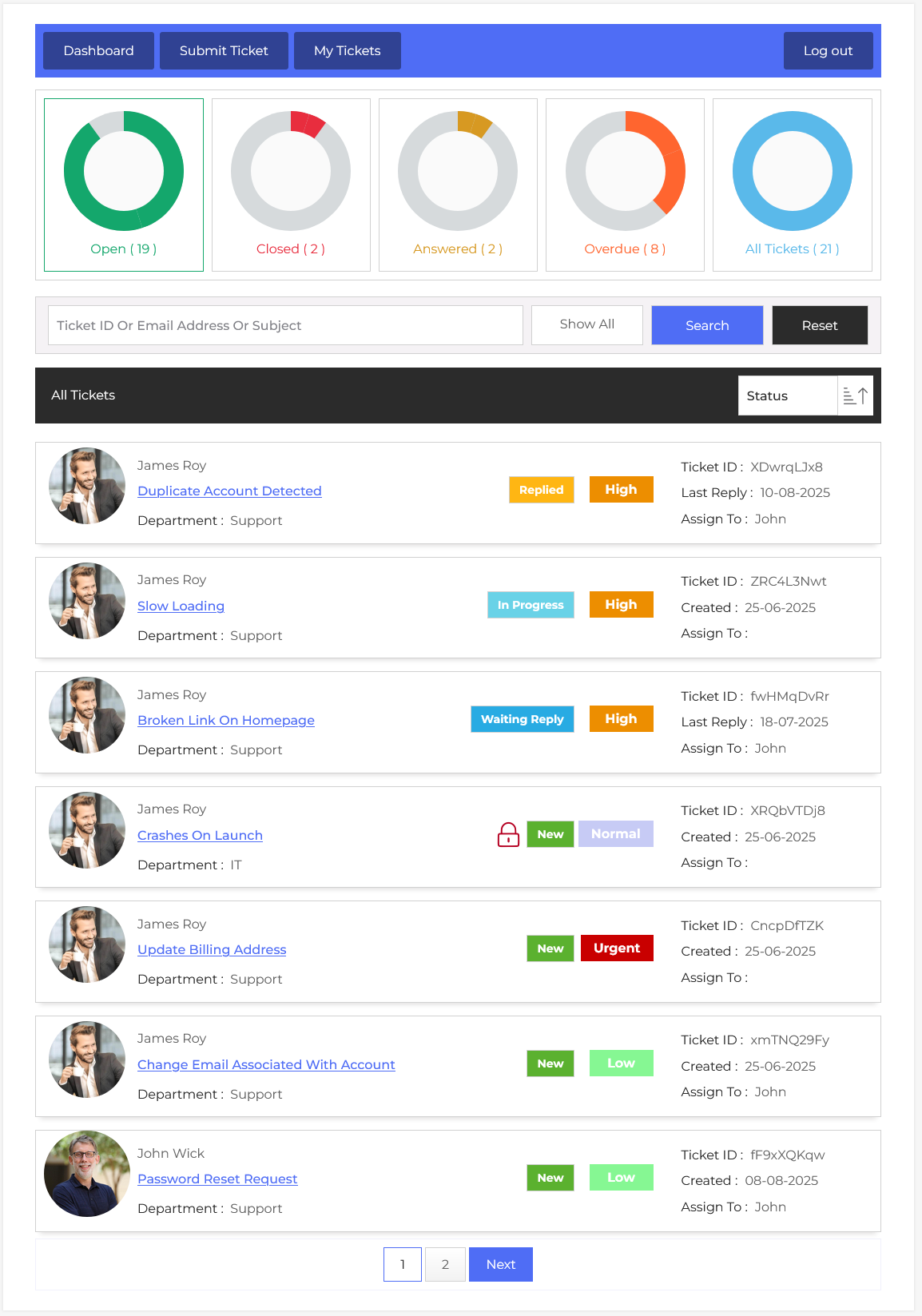
From your agent dashboard, navigate to the Agent Dashboard > Dashboard Menu > My Tickets. On my tickets page, you will find various options for the agent to manage the tickets. This is a ticket listing page for the agent. An agent can view tickets of his assigned departments, tickets directly assigned to him by the admin, or other agents. There is an option that allows admins to allow any agent to view all tickets. If the agent has permission to view all tickets, then all the tickets in the system will be visible here.
Top Menu
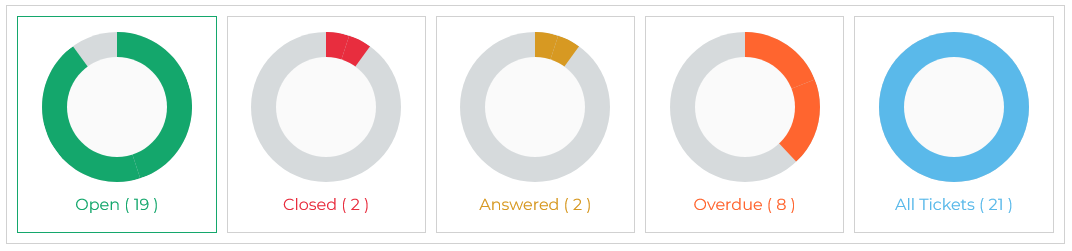
There are five buttons, each button has a title and the number of tickets. The button titles are open, closed, answered, overdue, and all tickets. Clicking on any of the five buttons will show those specific tickets on the page.
Open
The agent clicks the open button it displays the list of open tickets. In this list, those tickets are displayed that are still active and have not yet been resolved.
Closed
When the agent clicks on the closed button, it displays the list of closed tickets. In this list, those tickets are displayed that have been fully resolved and closed.
Answerd
Answered tickets are those tickets that receive a reply from the admin or the agent, but haven’t been closed yet. It could be awaiting a user reply.
Overdue
When the admin clicks on the overdue button, it displays the list of overdue tickets. Overdue tickets are those that have not been resolved within the due time.
All Tickets
This represents the total number of tickets currently in the system. When the agent clicks on the all tickets button, tickets with status (open, answered, overdue, and closed) are displayed in this list.
Search
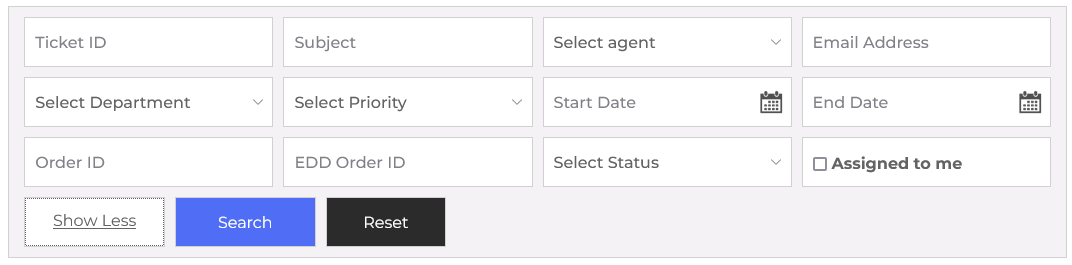
If the agent clicks on the “Show All” button on the right side, all search fields will appear on the screen, which is a comprehensive search on my listing page. It can be used to find tickets with any specific criteria. Agent filters tickets by Ticket ID, Subject, Select Agent, Email Address, Select Department, Select Priority, Start Date, End Date, Ticket Status, and Assigned to me. The agent can define criteria using the search fields and click on the search button, then only the tickets that fulfill the agent-specified criteria will be visible in a listing. The reset button will disable the criteria and show all tickets. The fields and the titles can be controlled from the field ordering.

This portion represents a single ticket; it has a photo, from, subject, department, ticket status, ticket ID, created, assigned to, and priority of a ticket. Clicking on the subject of a ticket will go to the ticket detail page.