
Slug In The JS Help Desk!
Slug
A slug is a short, descriptive part of a website’s URL that identifies a specific page or content. We’ll guide you through the process of managing slugs in the JS Help Desk.
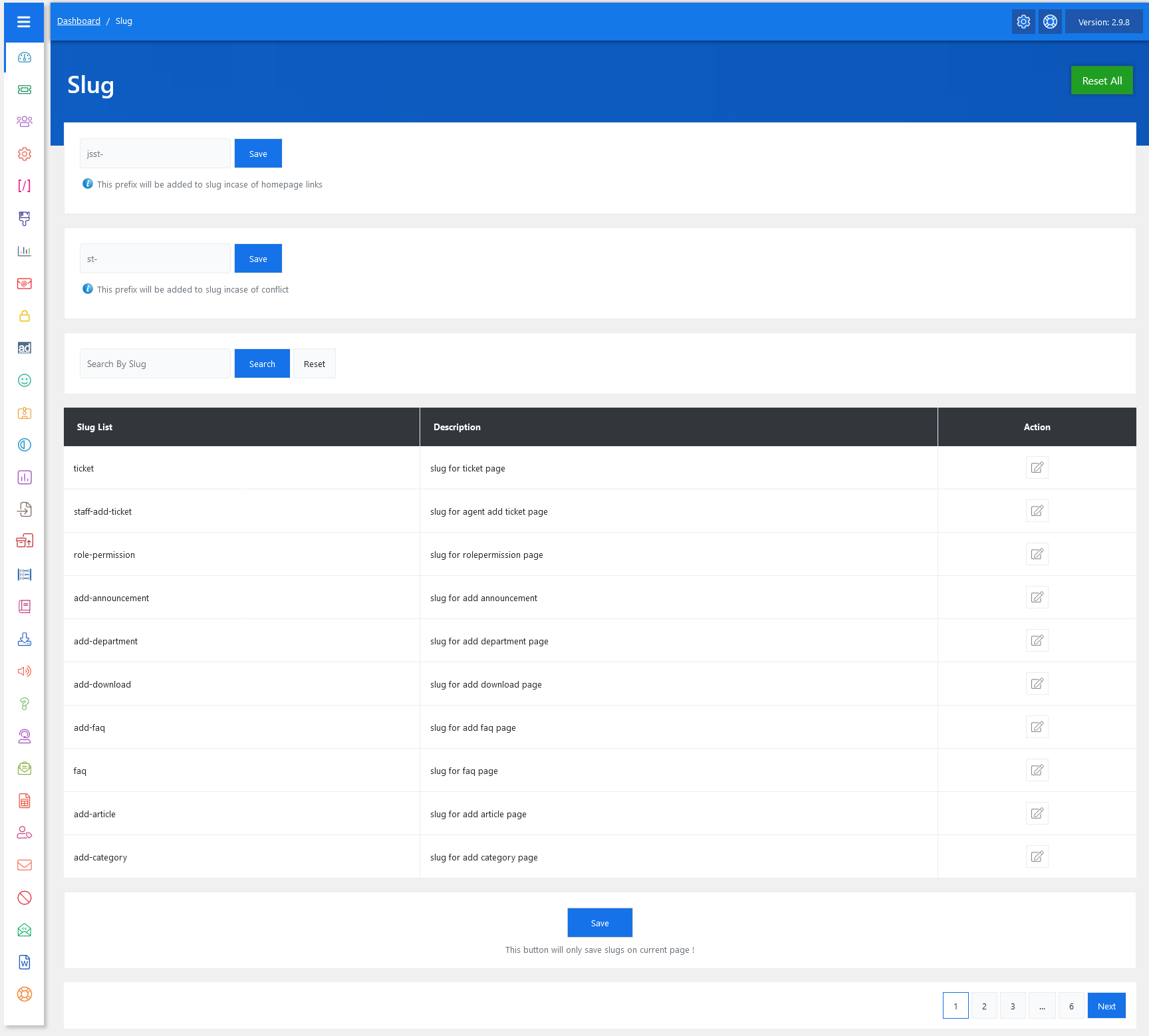
To manage slugs, first, access your Admin Dashboard > Dashboard Menu > Slug. On the settings page, you can choose a custom homepage slug prefix that differentiates it from other pages. Just enter the preferred prefix and save the changes. In the case of slug conflicts where two or more pages have the same slug, set a custom prefix to resolve these conflicts automatically.
Prefix Handling In Slugs

The system also provides prefix options to handle special cases:
-
Homepage conflicts: If a slug matches your homepage or another page, a prefix like “jsst-” will automatically be added.
-
Conflict resolution: Another prefix option, such as “st-“, is used when two slugs overlap. For example, if both your site and JS Help Desk use “/ticket”, the system may rewrite it to “/st-ticket” to avoid errors.
Search

The panel includes a search box, allowing you to quickly locate a specific slug. This is useful when your help desk has many pages, like tickets, downloads, announcements, and articles. Instead of scrolling through all slugs, you can simply search “slug” and edit it directly.
Listing
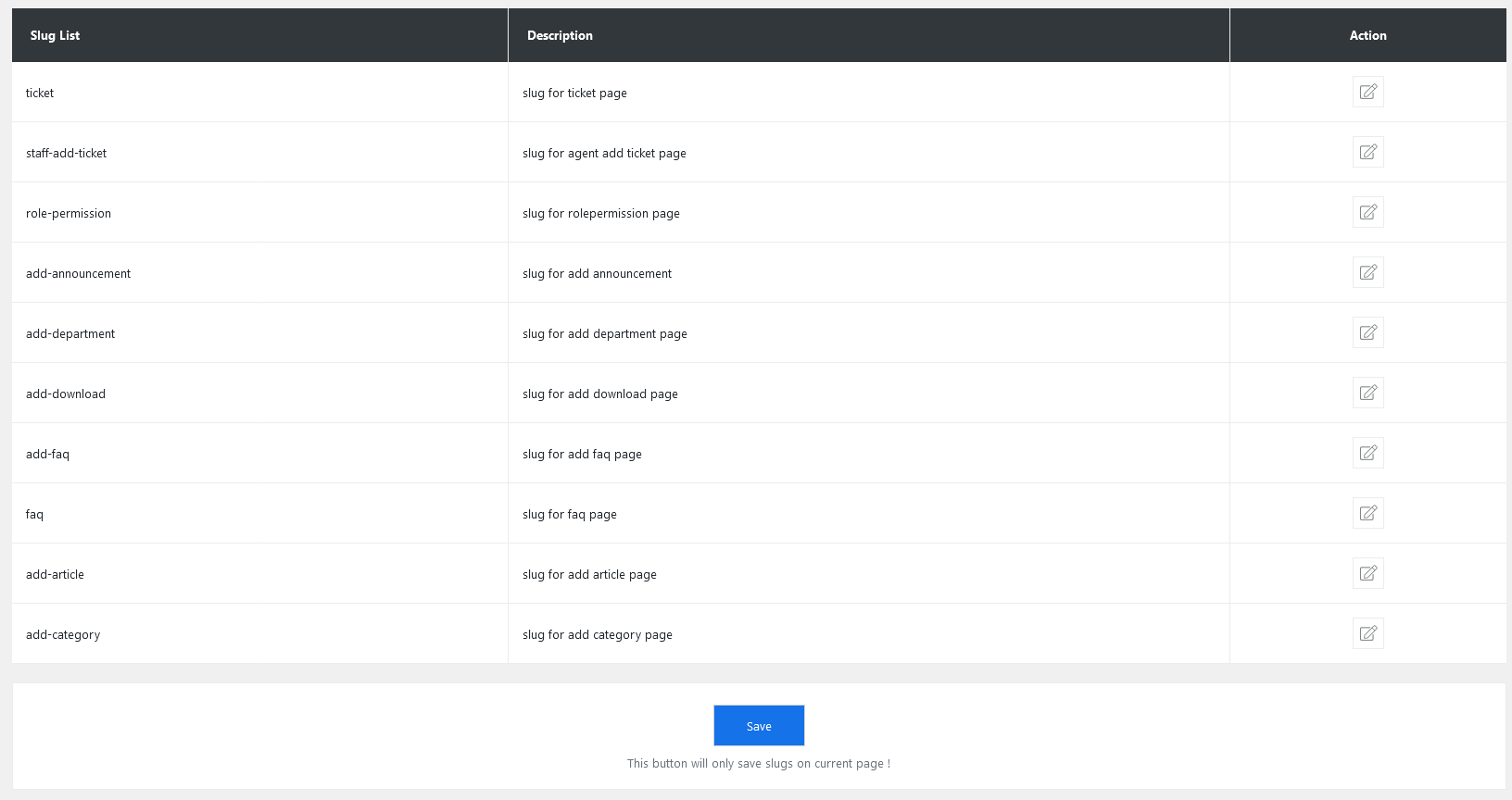
Here, the admin can view all slugs. Each slug has metadata like a title, description, and action button for editing. To customize a slug for a specific page, access the respective page editor from the slug listing.
Edit Slug
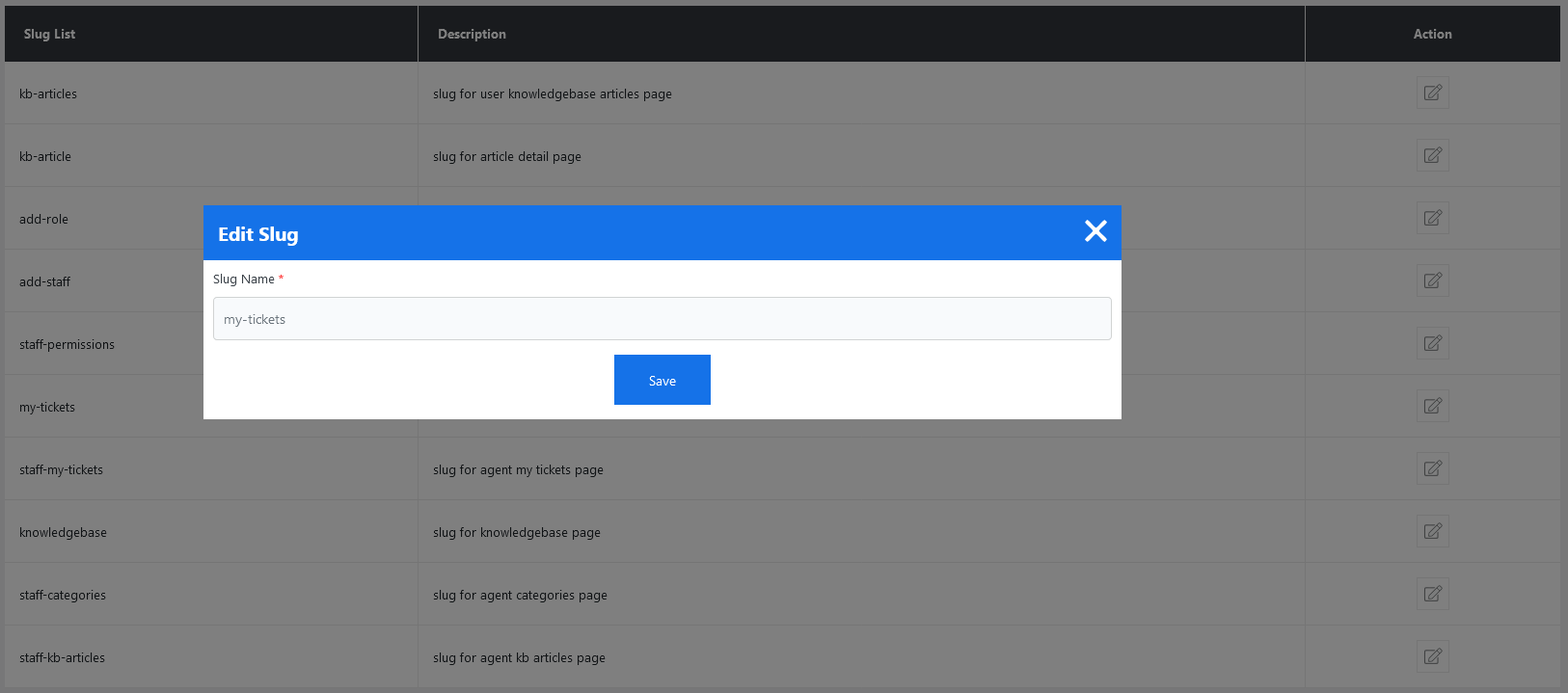
Manually input the desired slug for the page, ensuring clarity and relevance. Upon entering the custom slug, remember to save the changes to apply the updates effectively.
The custom slug is the part of a URL that follows the domain name and any subdirectories. It usually appears after the last slash (/). If a prefix has been added to the slug, it will appear before the actual slug in the URL. And that’s it. By properly managing slugs, you can ensure smooth navigation and enhance the overall user experience on your JS Help Desk website.
Example Use Case
Suppose your company provides downloads, FAQs, and support tickets. By default, customers see:
- yourdomain.com/add-download
- yourdomain.com/faq
- yourdomain.com/ticket
But if you want more branded links, you can edit them to:
- yourdomain.com/resources (instead of add-download)
- yourdomain.com/help (instead of faq)
- yourdomain.com/support (instead of ticket)
This not only looks more professional but also makes your URLs easier for customers to understand and search engines to rank.