
Ticket Status In The JS Help Desk!
Ticket Status
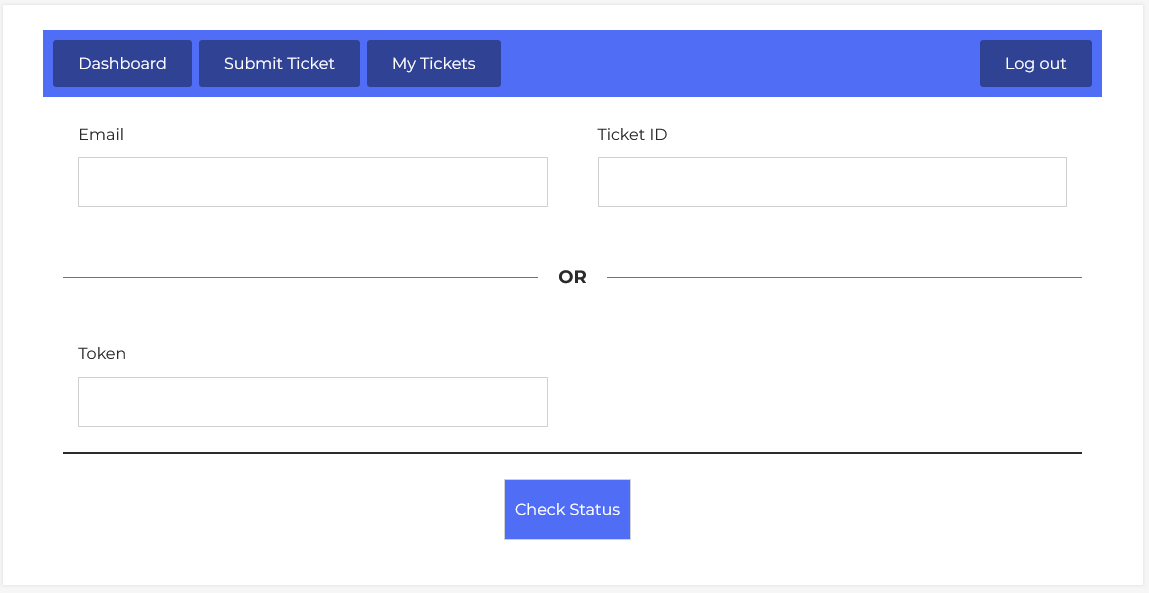
From your user dashboard, navigate to User Dashboard > Dashboard Menu > Ticket Status. This is a ticket status page that can be used to check the ticket status.
The Ticket Status feature in JS Help Desk allows users to check the current progress and activity on their submitted support tickets. This feature is beneficial for users who want real-time visibility into their ticket without needing to log in to a full user dashboard. With a minimal set of inputs and a simple interface, anyone can track a ticket’s status quickly and securely.
At the core of this functionality is the dual verification method. Users can retrieve ticket status in two ways:
-
By providing their Email Address and Ticket ID, or
-
By entering a Token associated with the ticket.
Check Ticket Status With Email Address and Ticket ID

The first method is suitable for registered users. For instance, if James Roy submitted a ticket using “jamesroy@gmail.com” and received a confirmation email containing the ticket ID (e.g, “#TKT1023”). He can return to this page, enter both values, and click “Check Status” to view updates. This method ensures that only the person who submitted the ticket or someone with access to the email can access sensitive details.
Check Ticket Status With Token

The second method uses a Token, which is a unique string generated with each ticket. This is particularly useful in scenarios where users aren’t registered on the help desk system. A token might look like “A4X9B7TZL” and can be shared after creating a new ticket. By entering just this token, the user can instantly check the status without needing additional information.
Ticket Token Notification screen
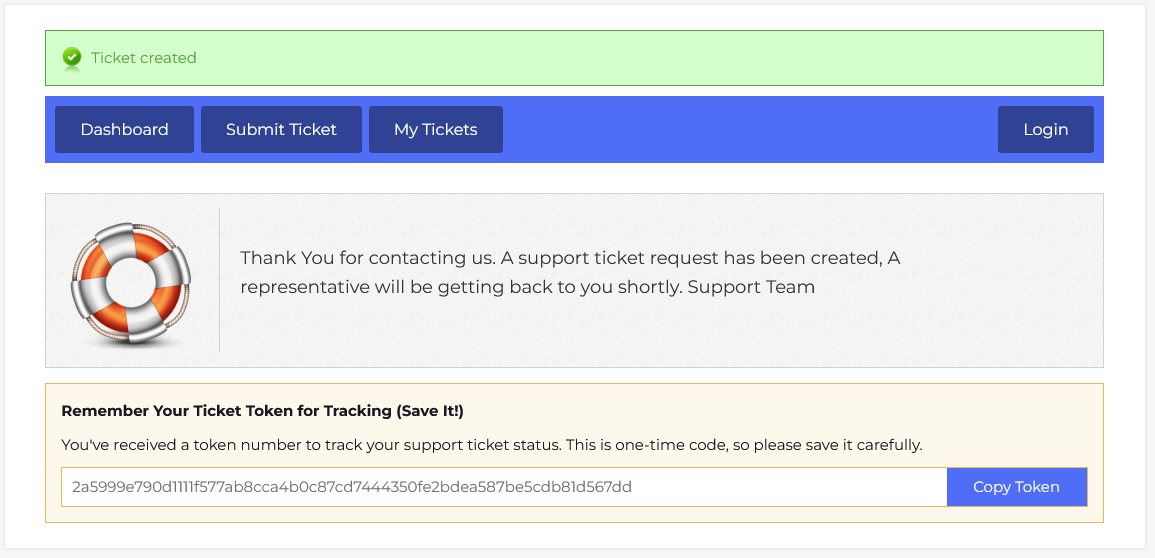
The Ticket Token Notification screen in JS Help Desk is an essential confirmation page displayed immediately after a guest user successfully submits a support ticket.
Upon successful ticket submission, guest users see a prominent green confirmation message stating “Ticket Created.” This notification confirms that their ticket has been created in the system and will be reviewed by a support agent. Below this is a thank-you message. This message is customizable and can be branded with your organization’s tone or support policy.
The most important part of this screen is the Token Display Section, which includes a unique alphanumeric code such as “692b491cccf6f0400579cbdf8a9f63bd62700c59a753064e4cba6c3ba53c7498” that serves as a private reference to the ticket. This code is generated automatically and securely. It is not just a replacement for the ticket ID, but also a form of verification, allowing users to view ticket status without needing account credentials.
Right next to the token field is a “Copy Token” button that makes it easy for guest users to copy the code to their clipboard. This is a user-friendly addition that encourages users to save their token somewhere secure (e.g., in an email, note app, or password manager). A clear instruction is displayed: “This is a one-time code, so please save it carefully.” This reinforces the importance of the token for future tracking.
This approach is especially beneficial for guest users, customers who do not wish to register, or companies providing public support access. It also improves privacy, since only the person with the token can view the ticket’s content and updates, which reduces the risk of unauthorized access.