
User Detail Report In The JS Help Desk!
User Detail Report
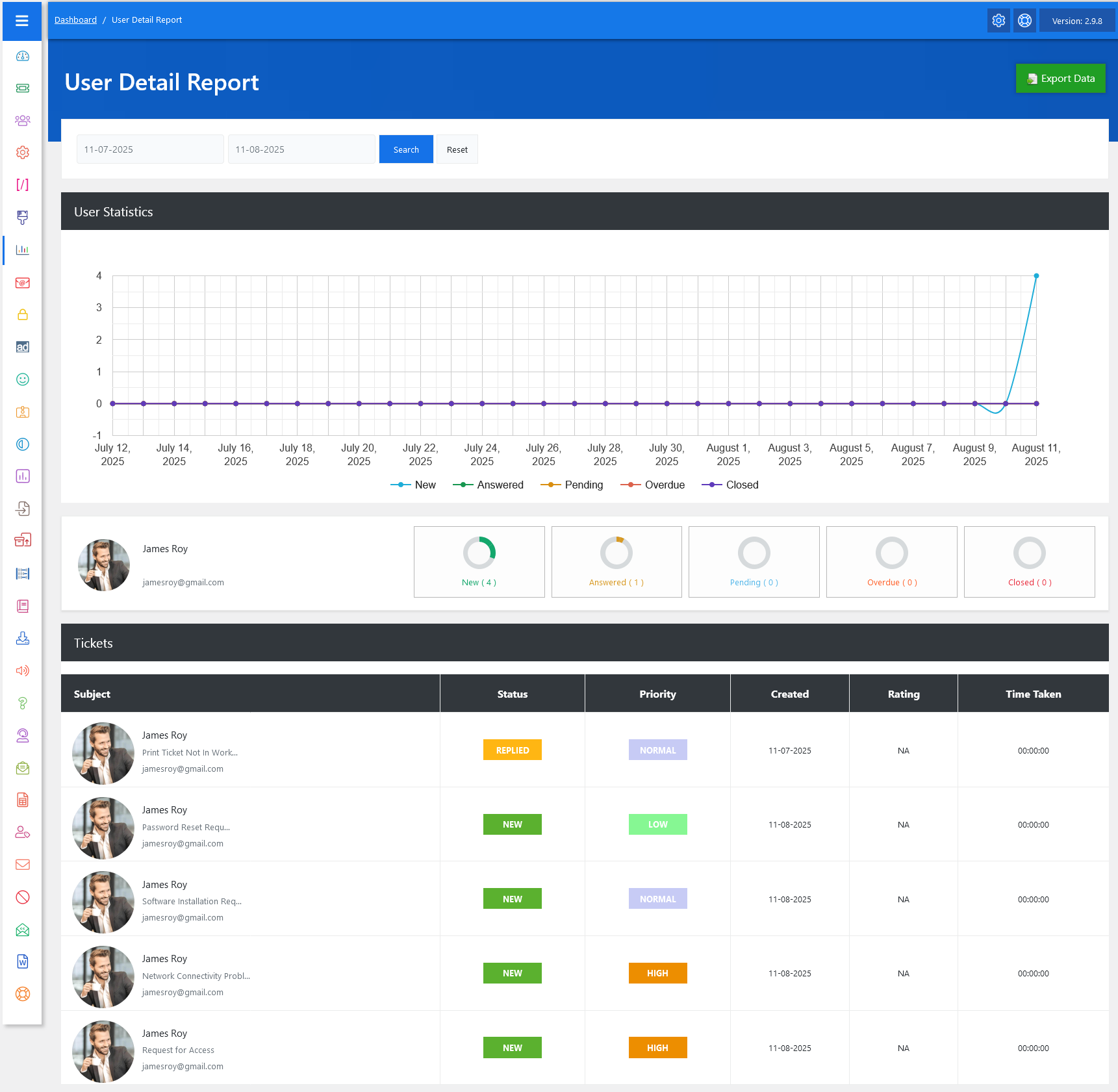
From your admin dashboard, navigate to Admin Dashboard > Dashboard Menu > User Reports. To view the user detail page, click on the user name. This page provides us with details about a user and their tickets. The User Detail Report feature in JS Help Desk provides a comprehensive view of all ticket activities and performance metrics for an individual user. By selecting a specific user, you can drill down into detailed statistics, making it easier to track performance and identify areas that may require attention. For example, if you choose “James Roy,” the system will display all tickets associated with him, categorized by their statuses such as New, Answered, Pending, Overdue, and Closed.
Search

You can select your desired date range using the date picker at the top, then click the Search button to view the ticket statistics for that period. The Reset option allows you to quickly revert the filters to the default and start a fresh search.
Graph
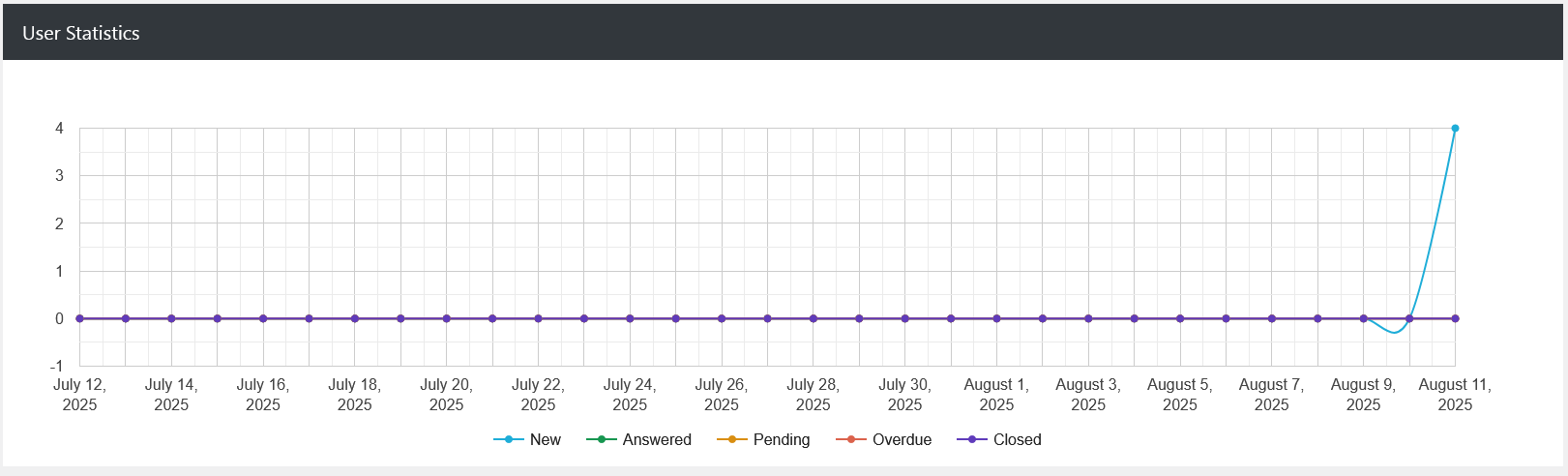
At the heart of this report is the User Statistics section, which presents a visual graph of ticket trends over time. Different colored lines represent ticket statuses such as New, Answered, Pending, Overdue, and Closed, allowing you to quickly spot activity spikes or inactivity periods.

Below the graph, you’ll find a summary widget section that gives quick, at-a-glance figures for ticket counts in each status category. You will find the user’s profile details, including their name, photo, and email address. This personalized display makes it easy to confirm which user’s data you are reviewing. The status counters next to the profile, Open, Answered, Pending, Overdue, and Closed, show exact ticket counts.
Tickets
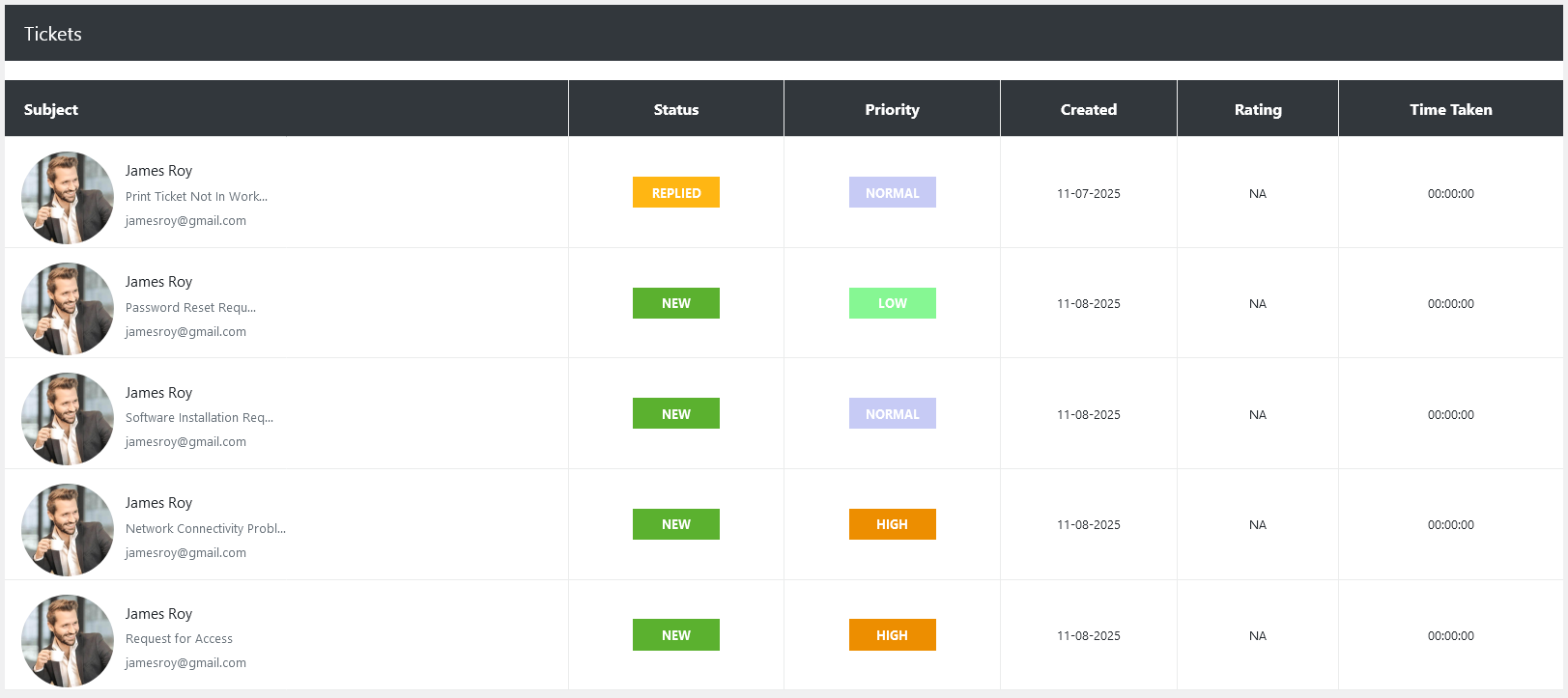
Below the graph, the User Ticket Breakdown section lists detailed statistics for the selected user. This breakdown shows ticket counts for each status along with their proportions. This data helps in understanding the distribution of workload and identifying areas that need improvement. For example, if a user has a high number of pending or overdue tickets, it might indicate either a lack of resources or a need for better ticket management strategies.
Export Data
This feature also allows for exporting data using the Export Data button in the top-right corner. Exporting enables you to save the report in a shareable format, such as Excel, for record-keeping. This is particularly helpful for team meetings, where you can present performance metrics directly from the exported files.