
Banned Emails In The JS Help Desk!
Banned Emails
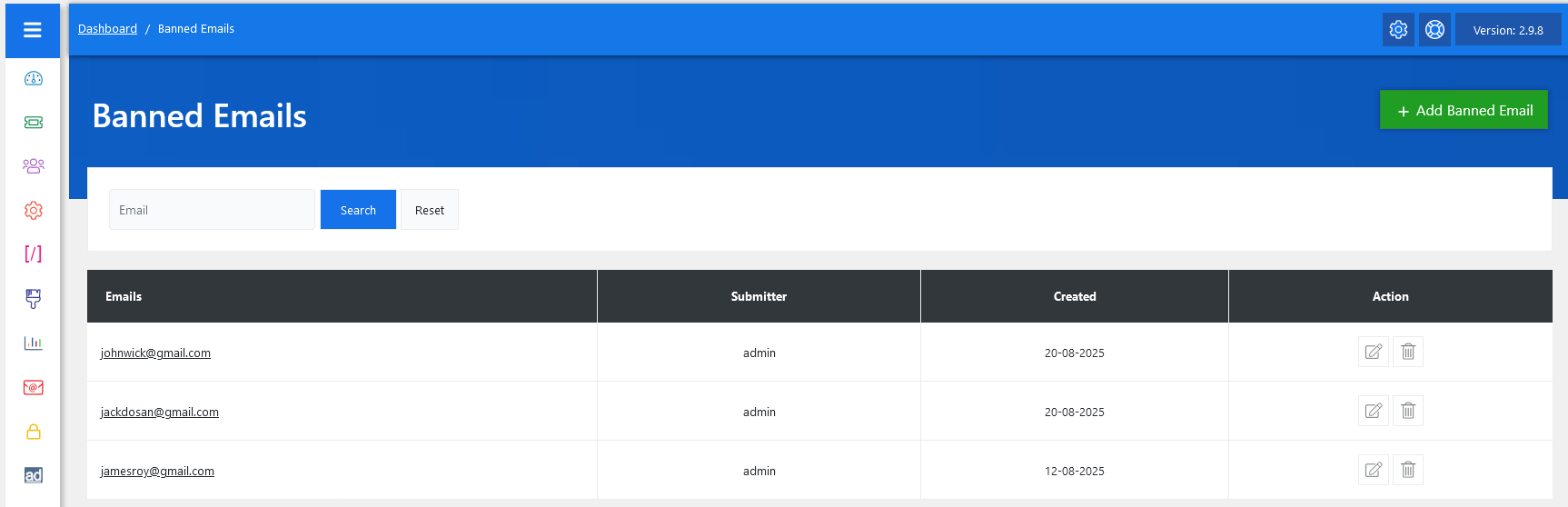
From your admin dashboard, navigate to the Admin Dashboard > Dashboard Menu > Banned Emails. On the banned email page, you will find various options to manage the banned emails. All the details about the banned email and how the administrators handled it are discussed here.
The Banned Emails feature in JS Help Desk allows administrators and agents to block specific email addresses from creating tickets in the system. This functionality is especially useful in preventing spam, blocking abusive users, or ensuring that only authorized users can communicate with your support team. When an email is banned, any attempt to submit a ticket using that address will be automatically rejected by the system, keeping your help desk clean and efficient.
Search

The system also includes a search and filter option, allowing administrators to quickly locate a specific banned email within the list. This is particularly helpful when dealing with large-scale organizations that may have a long list of restricted users. For example, if you want to check whether jackdosan@gmail.com has already been banned, simply enter it into the search bar and click on the search button; the system will display the matching record.
Listing

Within the Banned Emails dashboard, admins can view all currently restricted email addresses in a clear, tabular format. Each entry shows the banned email, the submitter who added it (usually an admin and agent), the date it was created, and available actions. For example, if johnwick@gmail.com is banned on 20-08-2025 by the admin.
Admins also have the option to edit or remove banned emails. Editing may be required if a typo was made during entry, while removal is useful when a previously banned user should be allowed access again. Additionally, there’s an option to “Add Banned Email” at the top right of the “Banned Email” page.