
System Emails In The JS Help Desk!
System Emails
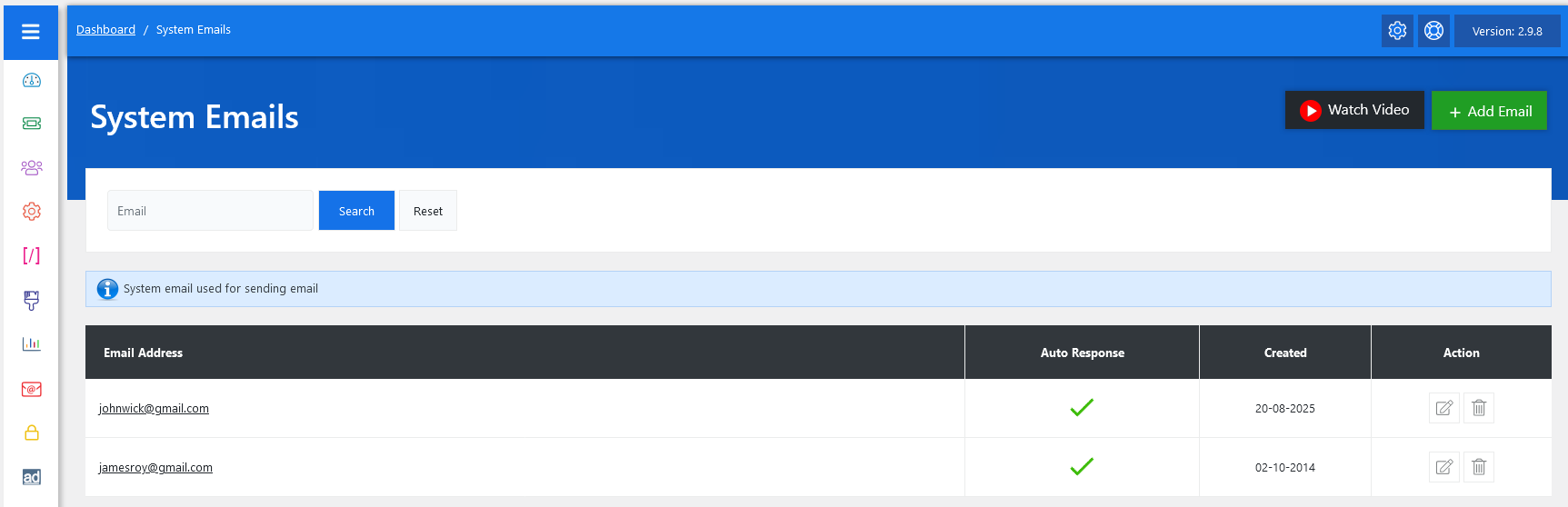
From your admin dashboard, navigate to the Admin Dashboard > Dashboard Menu > System Emails. On the System Emails page, you will find various options to manage system emails. All the details about the system email and how the administrators handled it are discussed here.
In JS Help Desk, the System Emails feature is designed to handle all the automated email notifications that the help desk sends to users, agents, and administrators. These system-generated emails play a critical role in ensuring smooth communication, keeping everyone informed about ticket updates, status changes, assignments, and other important actions that take place within the support system.
For example, when a customer creates a new ticket, the system immediately sends a confirmation email to the user letting them know their ticket has been received. At the same time, a notification email can be sent to the assigned support agent or the department, ensuring the ticket does not go unnoticed. This dual communication builds trust with the user while keeping agents on top of their responsibilities.
Another important aspect of system emails is the wide variety of triggers they support. These include new ticket creation, ticket assignment, ticket replies, status changes (open, pending, replied, closed), and overdue ticket reminders. For example, if a ticket is overdue, the system can automatically send a reminder email to the assigned agent, as well as an update to the user, explaining that their request is still being processed.
Search

The search functionality at the top of the system emails page makes it easier to manage multiple emails. Suppose your help desk handles several departments, and you need to quickly find whether sales@yourcompany.com is registered as a system email. You can simply enter it in the search field and instantly locate it, rather than scrolling through a long list.
Listing

The System Emails section in JS Help Desk provides a clear interface to manage these email addresses. Each system email entry shows details like the email address itself, whether auto-response is enabled, the date it was created, and actions (edit or delete). For instance, if you have johnwick@gmail.com set as a system email with auto-response enabled, every new ticket submission automatically triggers a reply from this address, confirming receipt. System emails also come with edit and delete options, allowing administrators to keep the email list up to date.
Set Department-Based Outgoing Email
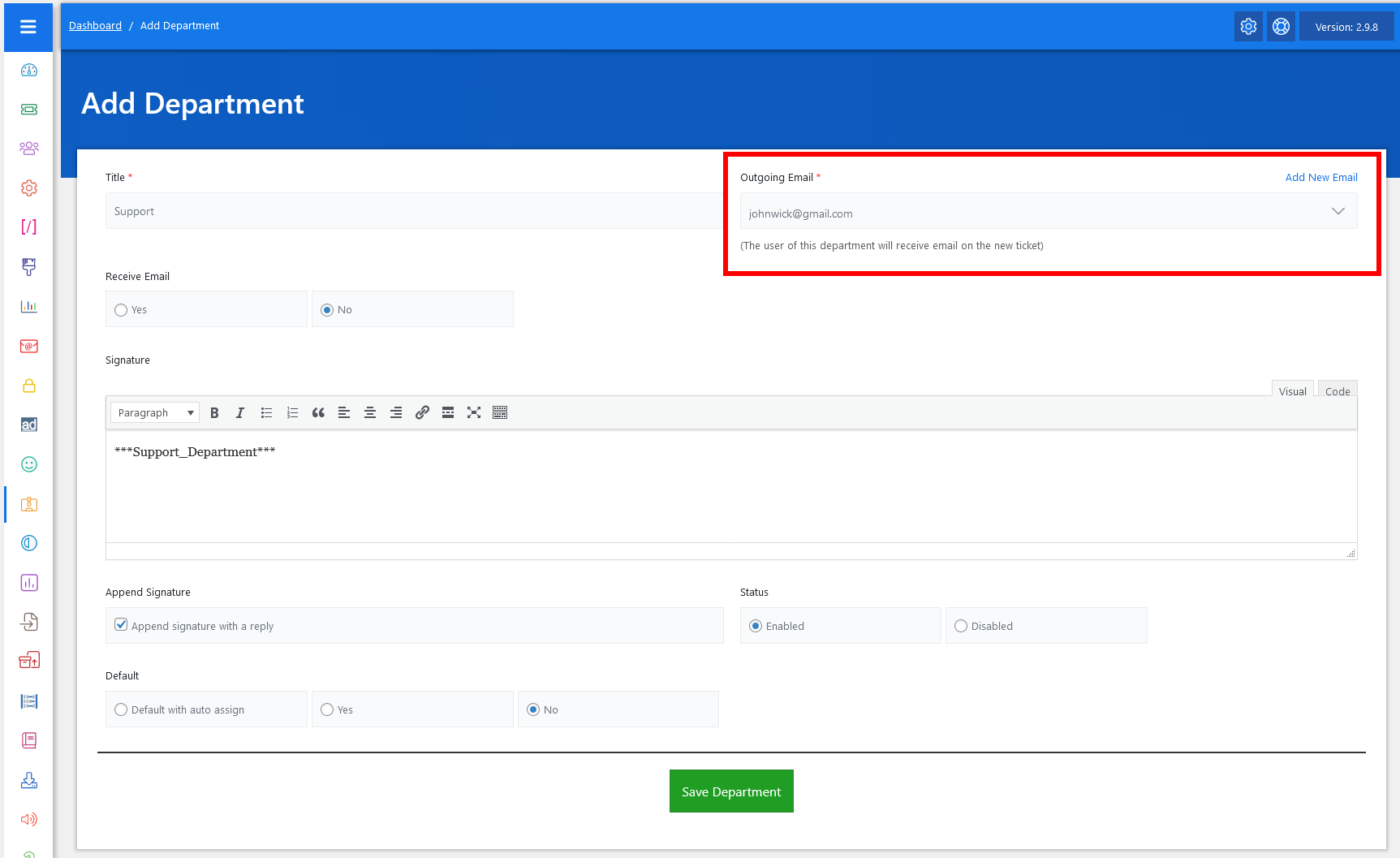
In JS Help Desk, setting up an outgoing email means configuring the email address that the system will use to send notifications, auto-responses, and ticket updates to customers and agents.
Set In Configurations
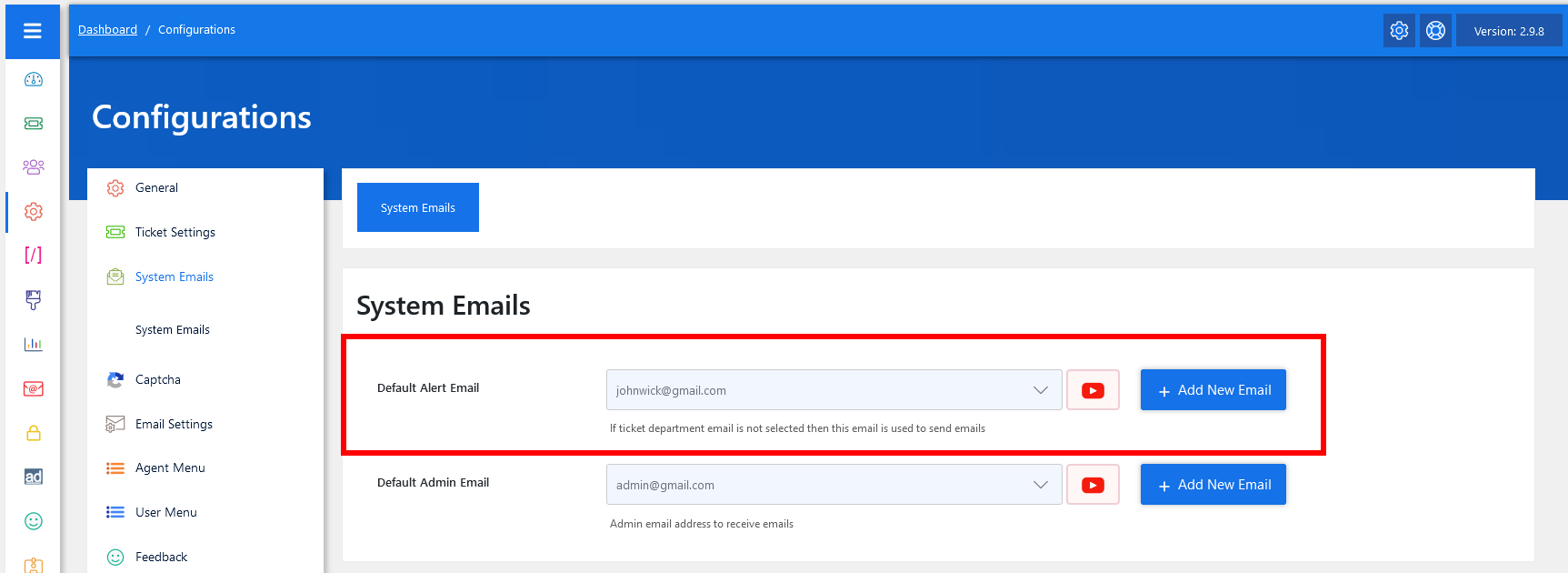
Navigate to System Emails in Configuration. In the JS Help Desk admin panel, go to Configuration > System Emails. This is the section where you can manage all the email addresses that the system will use for sending emails. From here, you can add new emails or set existing ones.
This video is helpful for a better understanding.