
Email CC In The JS Help Desk!
Email CC
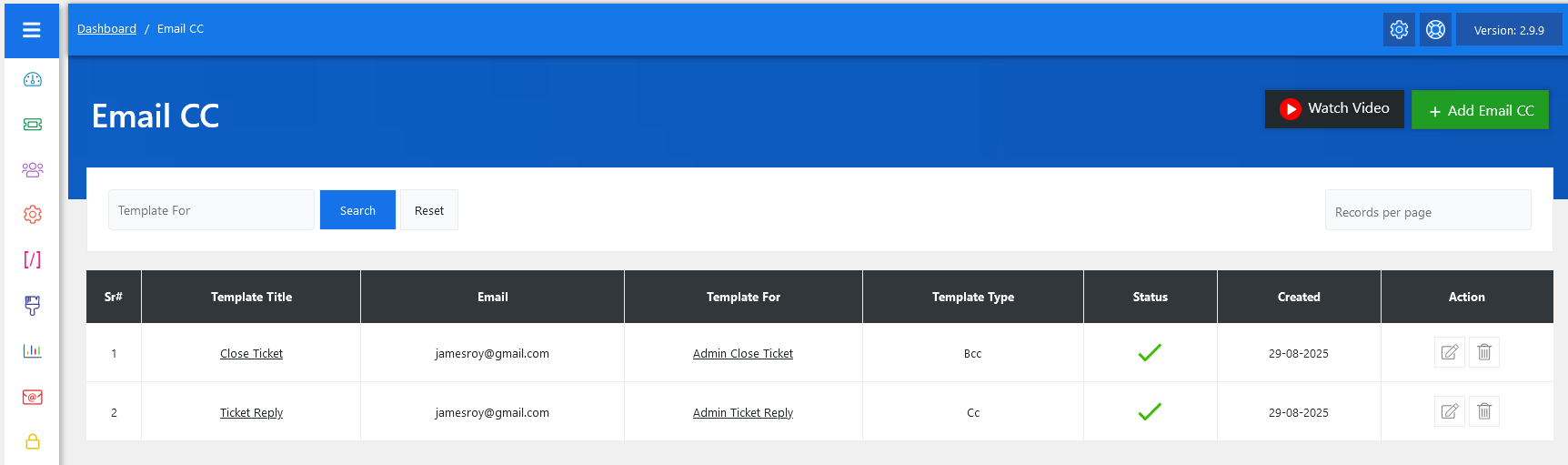
From your admin dashboard, navigate to the Admin Dashboard > Dashboard Menu > Email CC. On the Email CC page, you will find various options to manage email cc. All the details about the email cc and how the administrators handled it are discussed here.
The Email CC feature in JS Help Desk enables administrators to send copies of important ticket-related emails to additional recipients automatically. This ensures that supervisors, managers, or specific team members remain informed about ticket updates, even if they are not directly assigned to the ticket. It helps improve internal communication, accountability, and transparency within the support process.
When you add an Email CC, you can link it to a specific template type, such as Ticket Reply, Close Ticket, or any other notification template. For example, if you configure an Email CC for Ticket Reply, every time an admin responds to a ticket, a copy of that email will also be sent to the CC address.
You can also configure whether the additional recipient should receive the email as a CC (visible to others) or as a BCC (hidden from the main recipient). For instance, if you set an email as a BCC in the Close Ticket template, the admin will get notified whenever a ticket is closed, without the customer knowing that someone else is copied. This adds a layer of discreet monitoring without affecting customer experience.
Search

The search functionality at the top of the email cc page makes it easier to manage multiple templates. You can use the search filter to find the email template quickly. You can search by Template For. Clicking on the Search button will show the template for that title. The Reset button clears the filters and restores the full templates list.
Listing

The Email CC table provides a clear overview of configured rules. It displays the Template Title, the Email address that will receive copies, the Template For (the type of action/event), and the Template Type (CC or BCC). This makes it easy for administrators to see which templates are linked to CCs and adjust them when necessary. The Status column indicates whether the CC is active or not, and the Action buttons let you edit or delete any entry.