
Time Tracking In The JS Help Desk!
Time Tracking
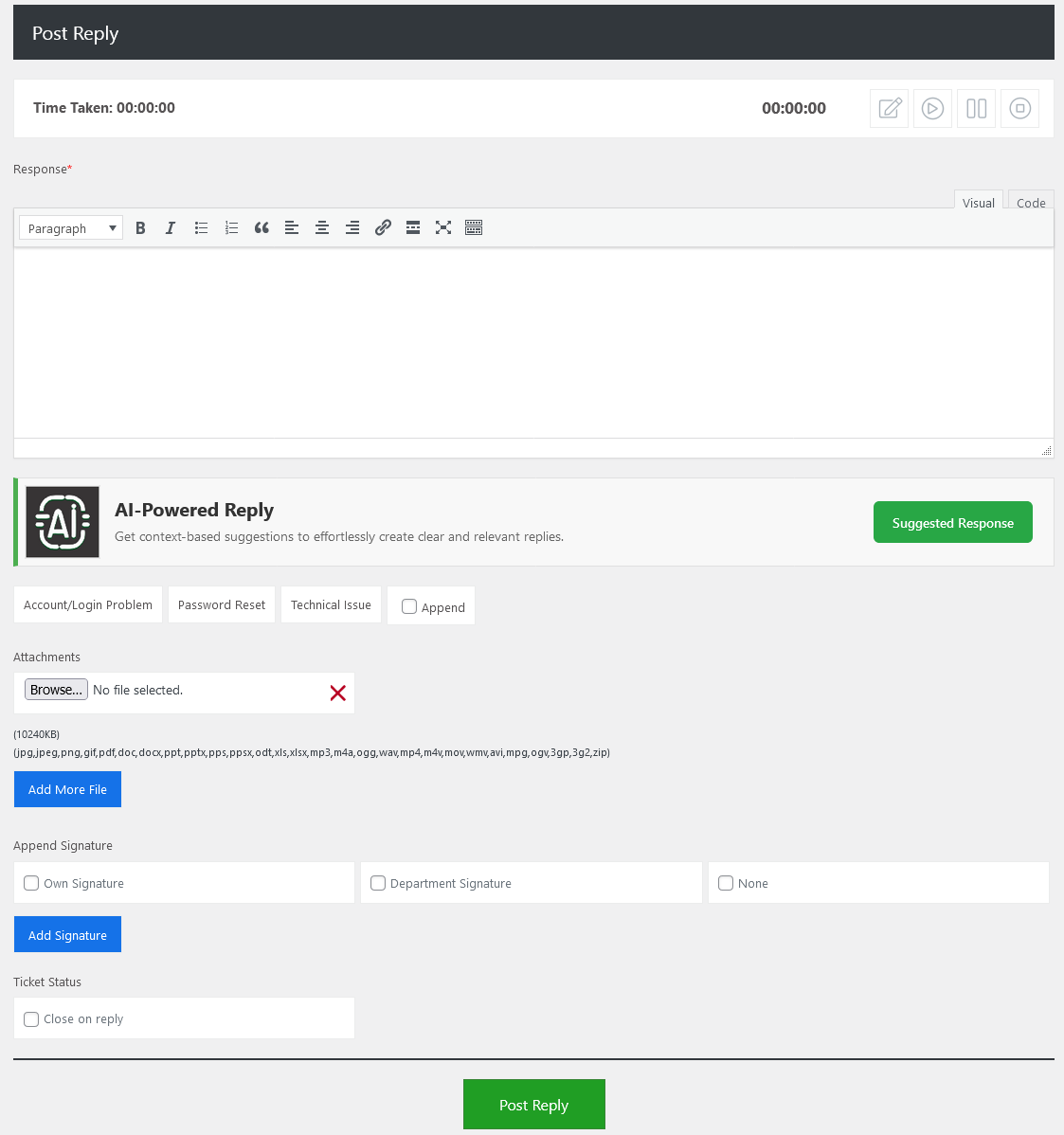
At the top of the reply window, you’ll see Time Tracking. Time Tracking allows the admin to track the time spent specifically on writing or investigating for this reply. Admin can start, pause, resume, or stop the timer using the icon buttons. Time Taken shows the total time already spent on this ticket. This helps monitor how long an agent spends responding to a ticket.

In time-tracking, the admin can see how much time an agent takes to reply. In edit time tracking, the admin can also view the reason given by the agent for editing the time track. There are four buttons on the right side with the different functionalities: edit, start, pause, and stop. When you click on the start button time will start.

When you click on the pause button, time will pause.

When you click on the stop button, time will stop.
Edit Time

There is an edit time button. When clicking on this button, a pop-up will show you, and you can edit the time by using this button. There are fields for time and reason for editing.
- Time: You can edit the time in hours, minutes, and seconds.
- Reason for Editing: Write a reason why you would edit the time of the ticket.
There are two buttons: save and cancel. The save button saves your edit time and reason for editing. The cancel button closes the pop-up.
Internal Note
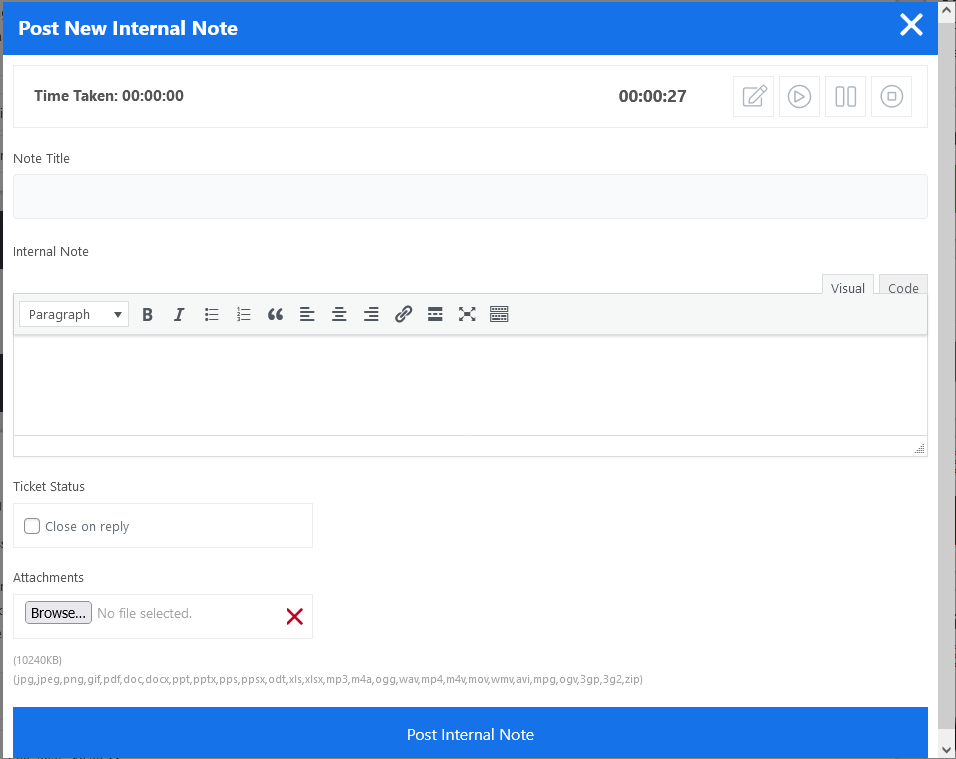
- Time Tracking: Allows the admin to track the time spent specifically on writing or investigating for this note. Admin can start, pause, resume, or stop the timer using the icon buttons. This is useful for accurate logging and reporting.
- Time Taken: Shows the total time already spent on this ticket.
Total Time Taken
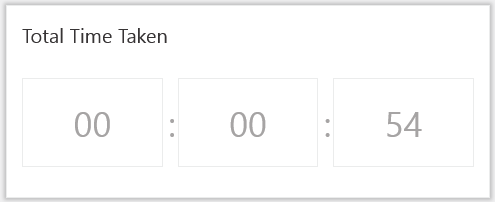
The Total Time Taken feature in your help desk plugin shows the exact amount of time spent working on a ticket. In the image you’ve provided, the system displays the time in the format HH: MM: SS. This feature is extremely useful for tracking agent productivity and monitoring support performance. Total Time Taken gives you a clear and measurable way to track how quickly and effectively your support team is handling tickets, which is key to delivering high-quality customer service.
Time Tracking In Reports
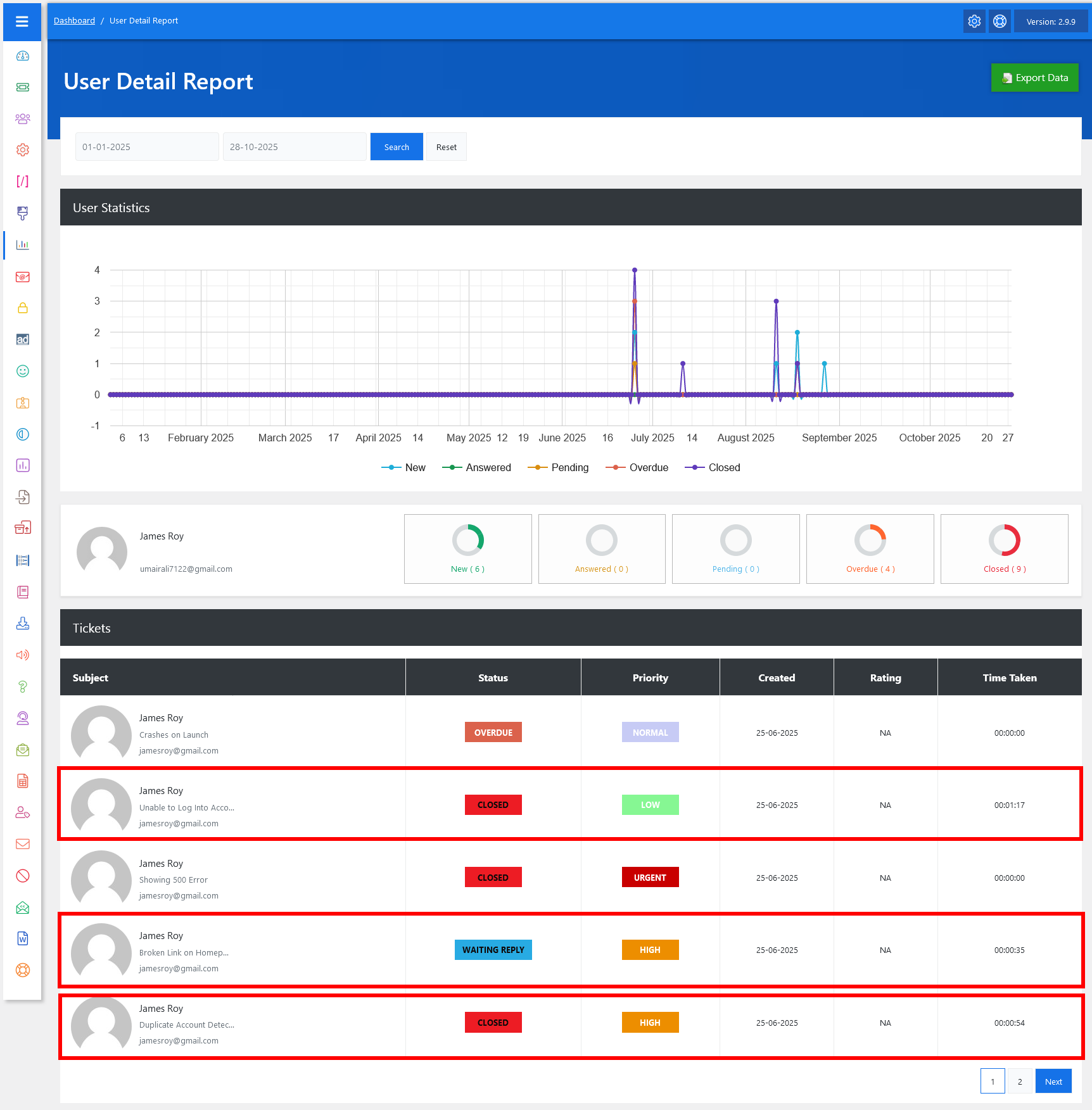
The Time Tracking section you see in the User Detail Report (the last column labeled “Time Taken”) shows how much active working time was spent handling each ticket from creation to its current or closed state.