
Ticket Settings In The JS Help Desk!
Ticket Settings
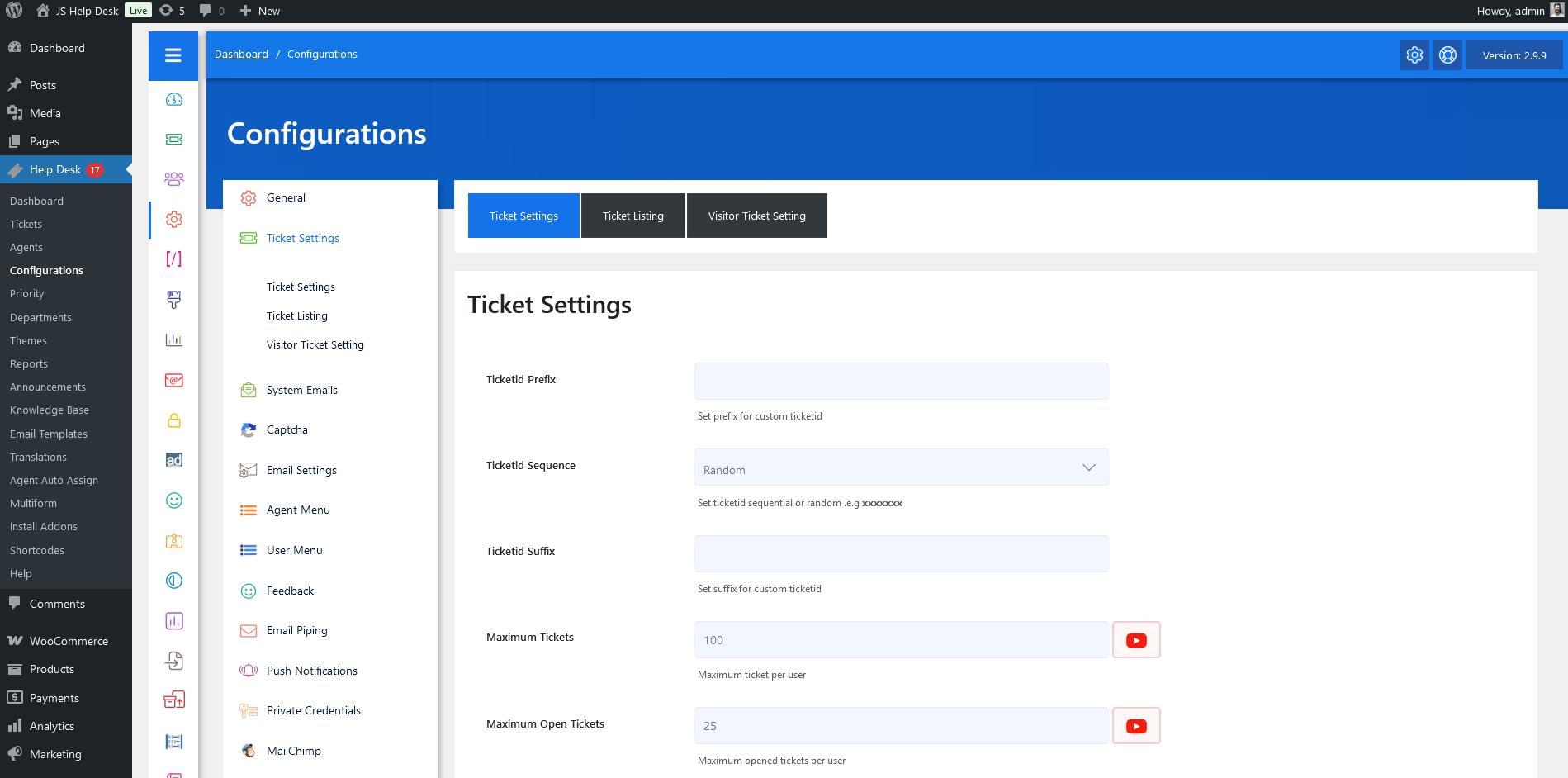
As an administrator, navigate to the Admin Dashboard > Dashboard Menu > Configurations > Ticket Settings. On the configurations page, you will find various configurations that the admin can use to manage the JS Help Desk. This page has all the ticket configurations on the JS Help Desk. Anything that affects both the user side and the agent side is listed here.
Ticket Settings
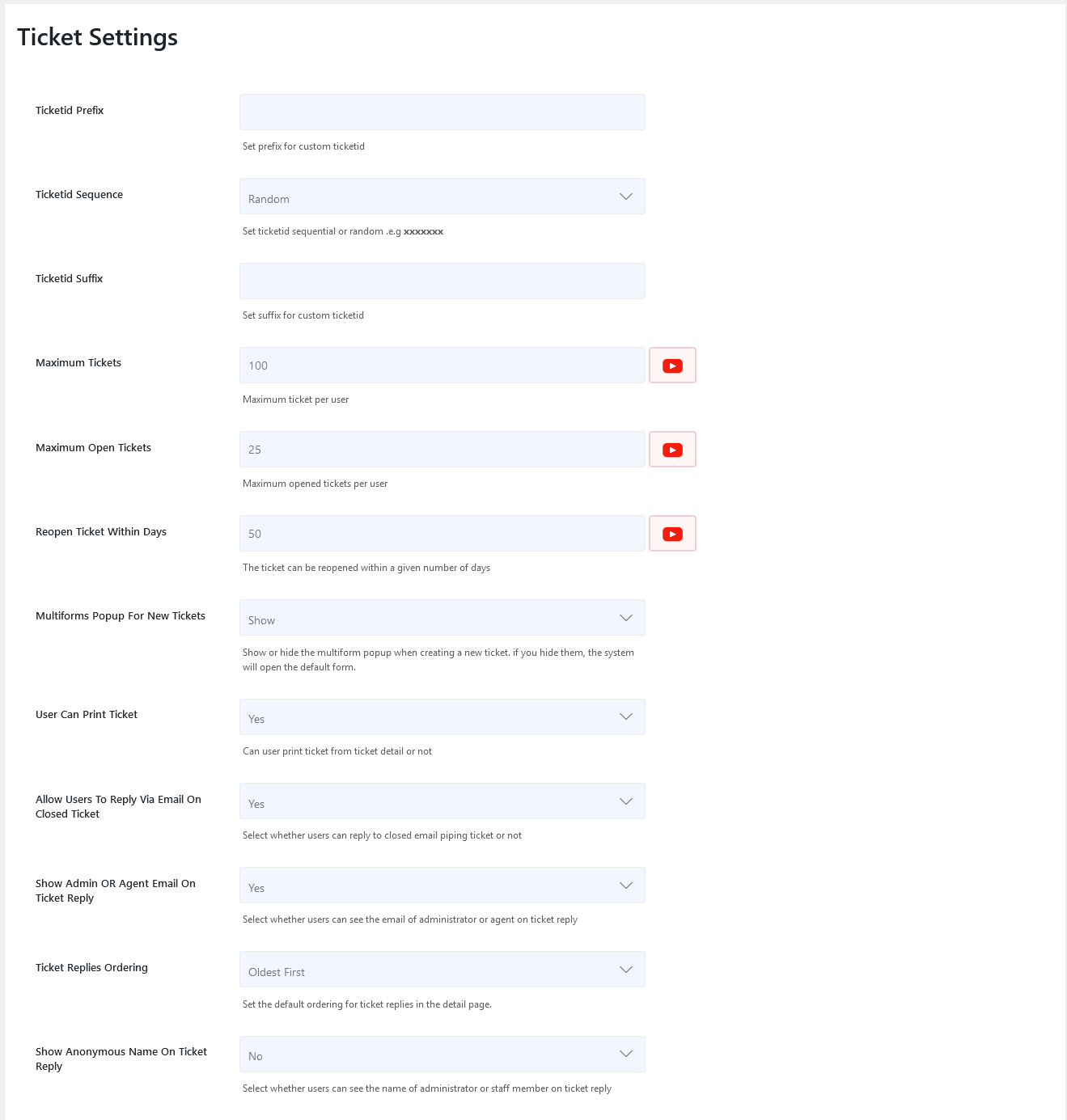
Ticketid Prefix
Set a prefix for a custom ticket ID.
Ticketid Sequence
Choose whether the ticket ID should be Sequential or Random.
Ticketid Suffix
Set the suffix for the custom ticket ID.
Maximum Tickets
This configuration controls the number of tickets allowed to a user. The Maximum Tickets option restricts how many total tickets a user can create.
Maximum Open Tickets
This configuration controls the number of open tickets allowed to a user.
Reopen Ticket Within Days
This configuration controls the number of days during which a ticket can be reopened.
Multiforms Popup For New Tickets
The Multiforms Pop-up For New Tickets option controls how users interact with ticket forms. You can choose to show a multiform pop-up when creating a new ticket or directly open the default form.
User Can Print Ticket
This configuration controls user’s print ticket is from the ticket detail or not.
Allow Users To Reply Via Email On Closed Tickets
Select whether users can reply to closed tickets via email or not.
Show Admin OR Agent Email On Ticket Reply
Select whether users can see the email of the administrator or the agent on ticket reply.
Ticket Replies Ordering
Set the default ordering for ticket replies in the detail page.
Show Anonymous Name On Ticket Reply
Select whether users can see the name of the administrator or agent on the ticket reply.
Show Message Read Icon for Admin On Ticket Detail
Select whether the message read icon is displayed to the administrator on the ticket detail.
Show Message Read Icon For Agents on Ticket Detail
Select whether the message read icon is displayed to agents on the ticket detail.
Show Message Read Icon For Users On Ticket Detail
Select whether the message read icon is displayed to users on the ticket detail.
Ticket Auto Closes
Set the number of days. The ticket auto-closes if the user does not respond within the given days.
Show Ticket Delete Button
Select whether users can see the ticket delete button or not.
New Ticket Message
This message will show on the new ticket.
Ticket Listing
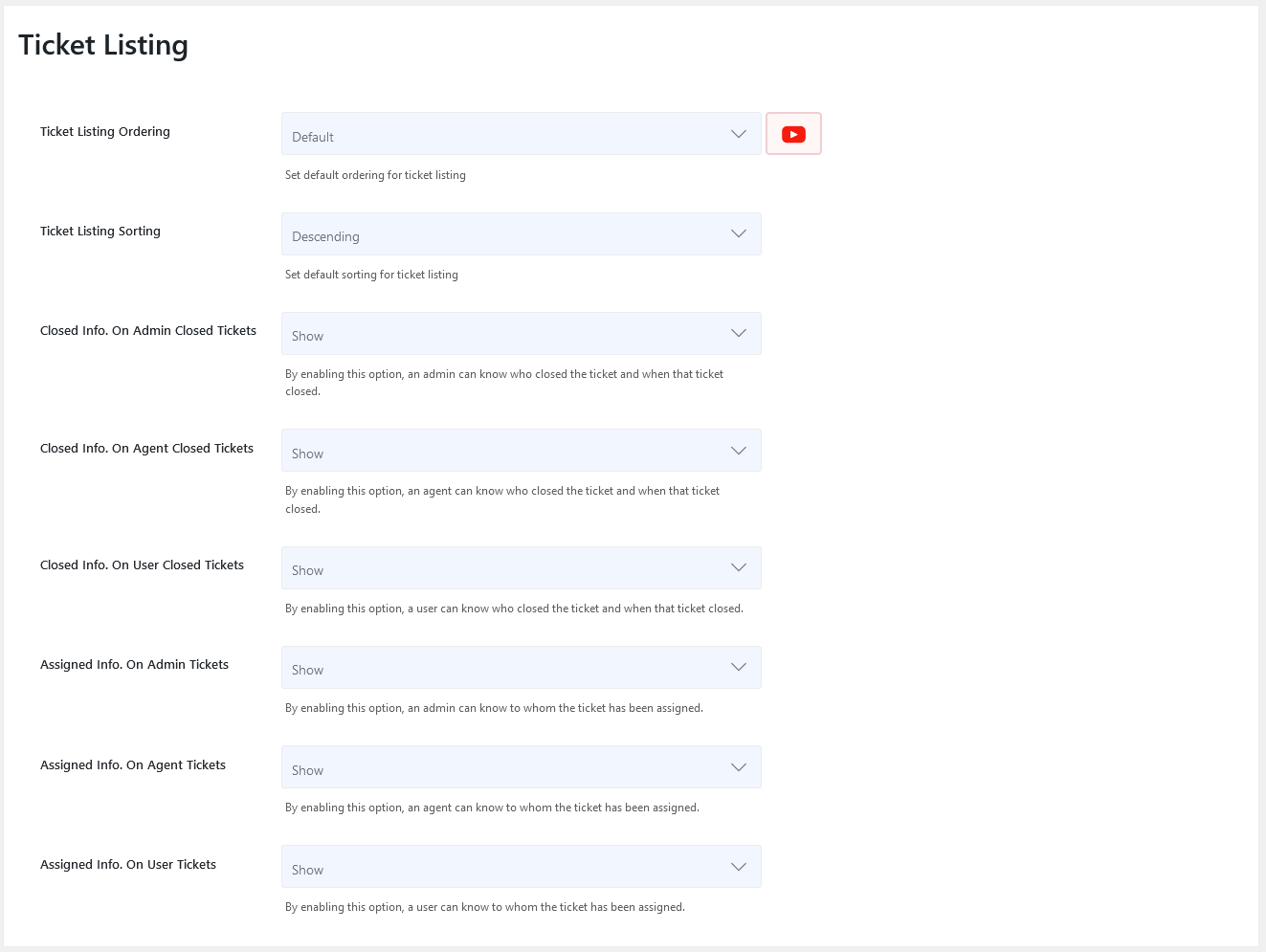
Ticket Listing Ordering
Set default ordering for ticket listing.
Ticket Listing Sorting
Set default sorting for ticket listing.
Closed info. On Admin Closed Tickets
By enabling this option, an admin can know who closed the ticket and when that ticket was closed.
Closed info. On Agent Closed Tickets
By enabling this option, an agent can know who closed the ticket and when that ticket was closed.
Closed info. On User Closed Tickets
By enabling this option, a user can know who closed the ticket and when that ticket was closed.
Assigned info. On Admin Tickets
By enabling this option, an admin can know to whom the ticket has been assigned.
Assigned info. On Agent Tickets
By enabling this option, an agent can know to whom the ticket has been assigned.
Assigned info. On User Tickets
By enabling this option, a user can know to whom the ticket has been assigned.
Visitor Ticket Setting
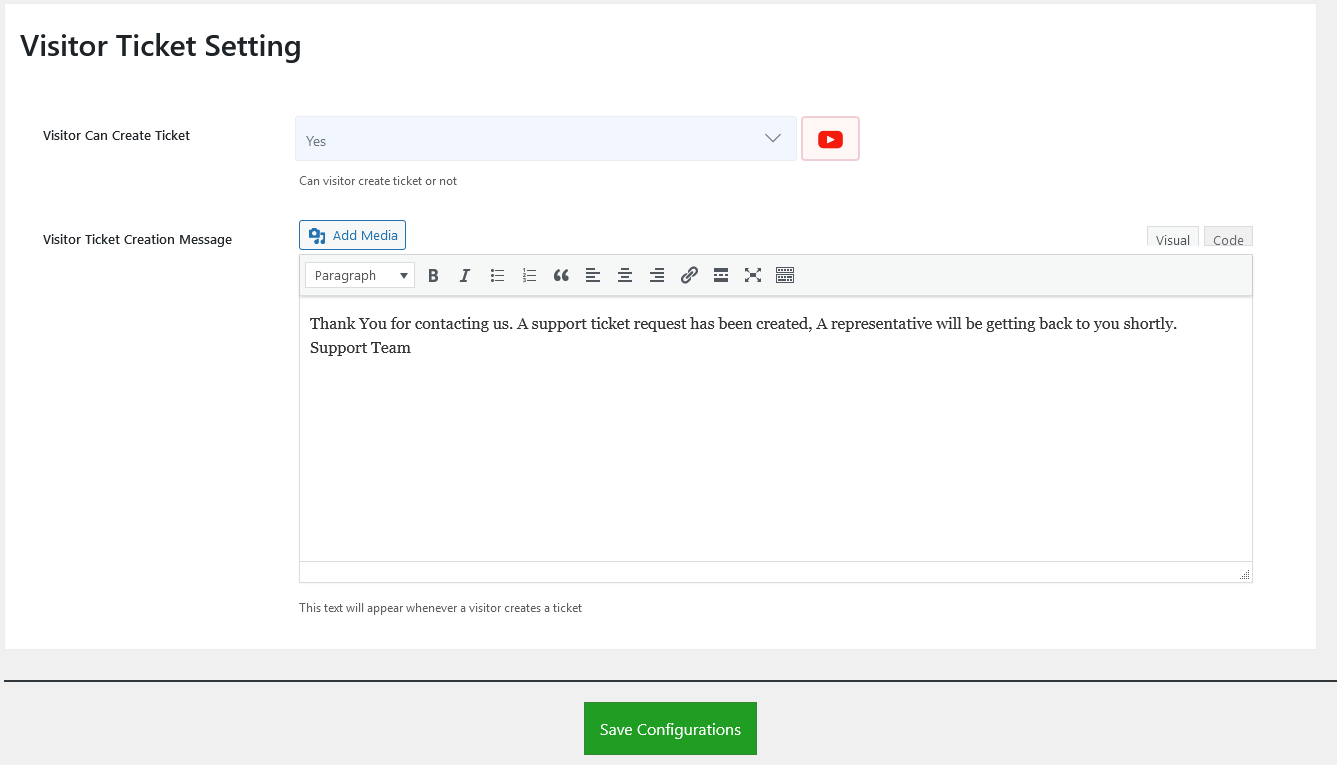
Visitor Can Create Ticket
This configuration controls whether the visitor can create a ticket or not.
Visitor Ticket Creation Message
This text will appear whenever a visitor creates a ticket.